Acute makes immersive video collaboration and publishing a breeze.
Upload your videos of any immersive format to the Acute Immersive Platform and play them with Acute Pro, our companion app for the Apple Vision Pro. Review them with your team, and publish them in your own app, no code needed!
Use this step-by-step tutorial to learn how to use the Acute Immersive Platform and Acute Pro.
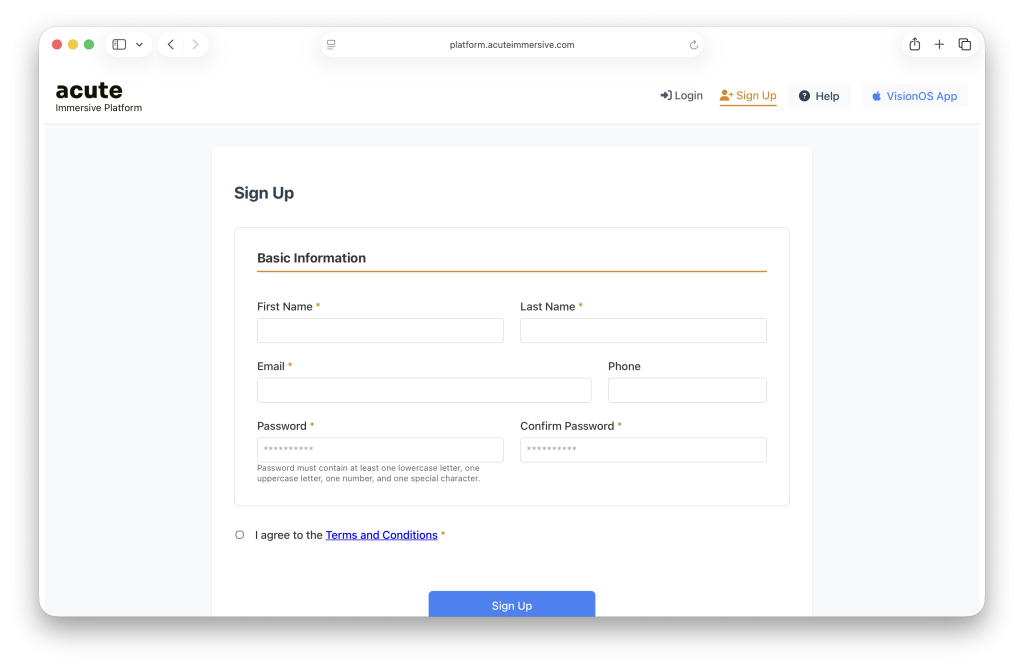
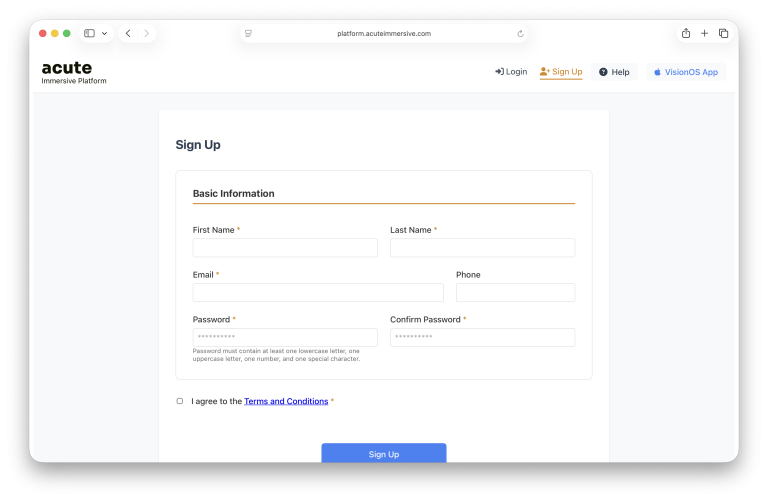
Navigate to Sign Up and fill in the registration information. Mandatory fields are marked with an asterisk. Once you’re done, click the Sign Up button at the bottom.
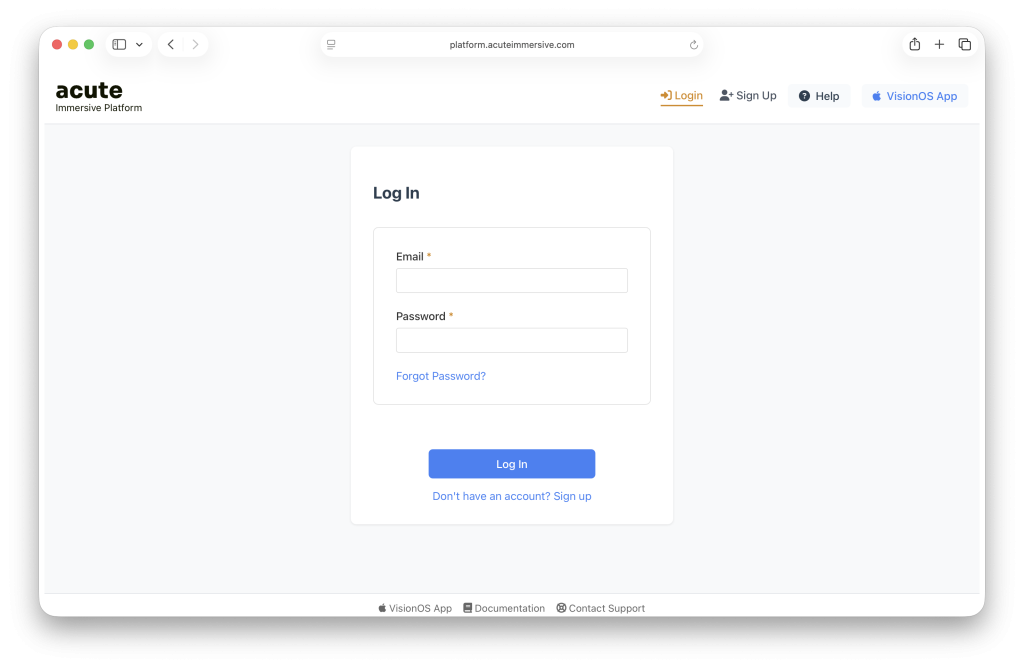
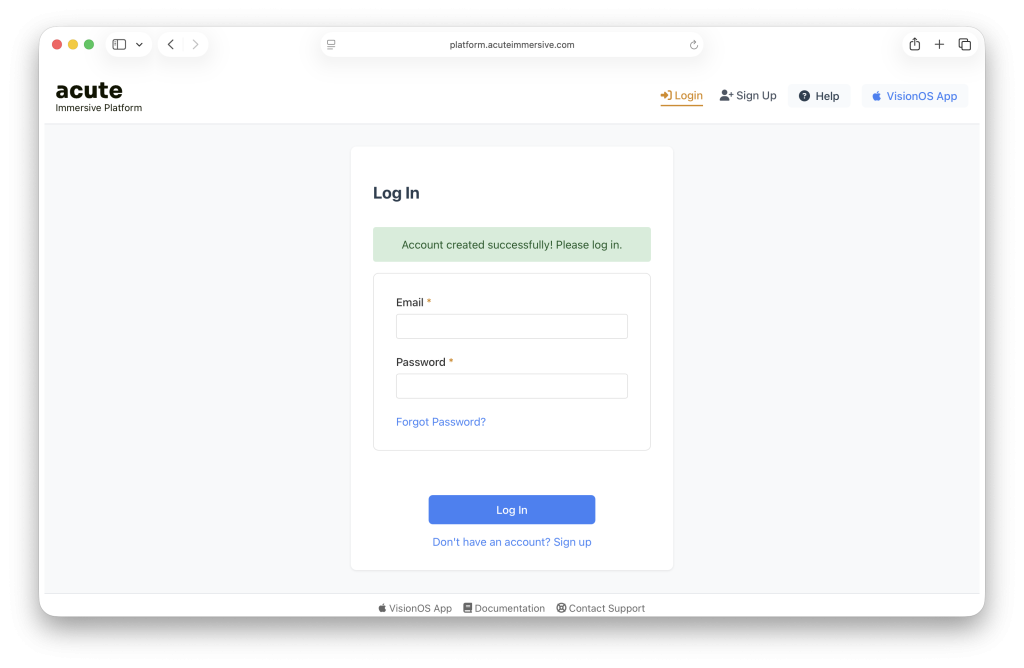
Once back at the Log In page, use your email and password to log in.
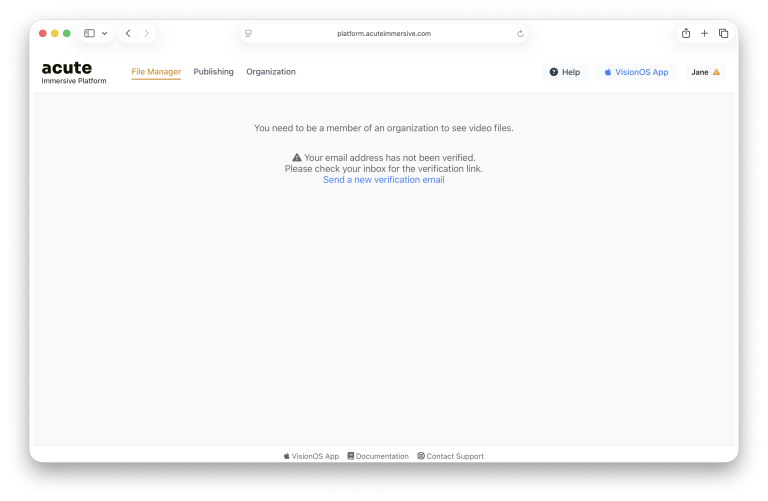
You should receive a welcome email at the address you provided, containing a Verify Email link. You’ll need to click this link before you can use the platform. The link expires after 24 hours. You can send a new verification email at any time.
Once logged in with a verified email, you are taken to the File Manager.
Start
Create an organization
In the Acute Immersive Platform, all content belongs to organizations, not users. What you can see and do on the platform depends on your role within this organization.
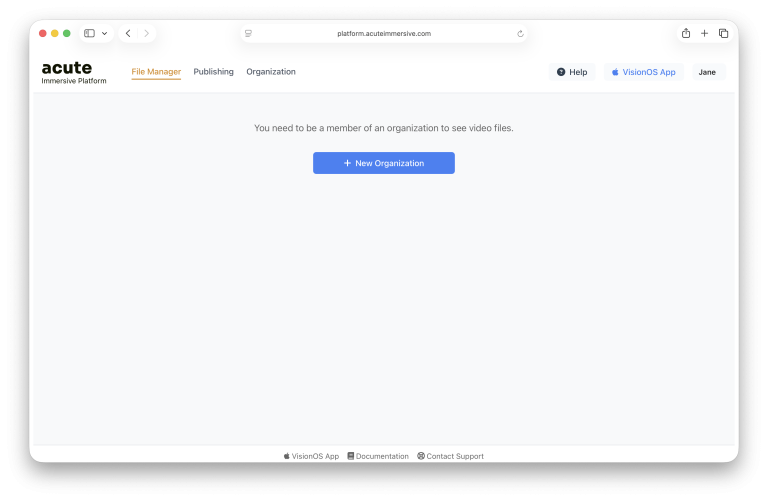
Before you can upload a video, you need create, or be added to, an organization.
If you are a solo individual, just create an organization in your own name. If you are joining an existing team, ask the organization owner to invite you as a collaborator.
If you are creating a new team, click the New Organization button.
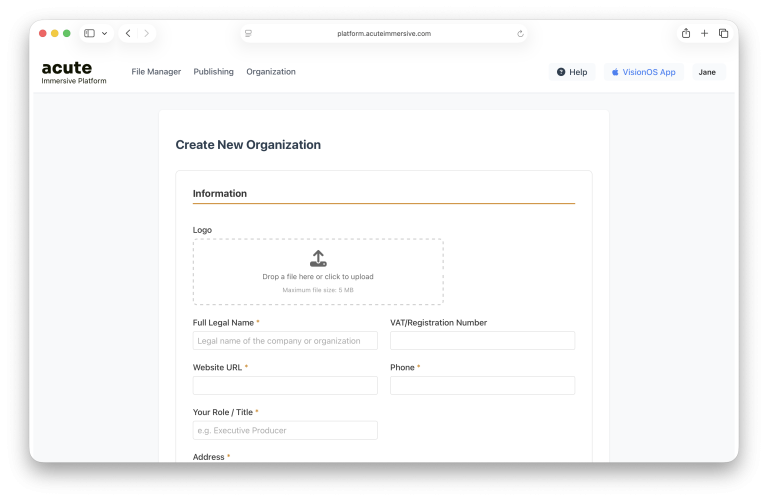
Fill in the required information for your organization. Mandatory fields are marked with an asterisk. Once you’re done, click Create Organization.
This new organization is now owned by your user account. You’ll notice the name of the organization appears under your first name in the User Menu button at the top right.
Media
Upload a video
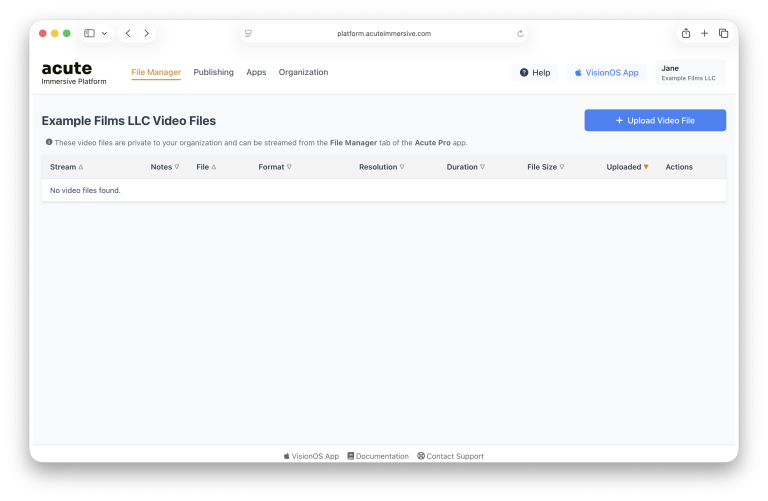
The default page is the File Manager, which lets you manage your organization’s video files. You can think of it as a Dropbox or Google Drive folder.
Everything in the Acute Immersive Platform is private by default. Other than you, your collaborators, and Acute employees, nobody can see your organization, your users, or your video files. Publishing and sharing videos take explicit steps, detailed further below.
Click the Upload Video File button.
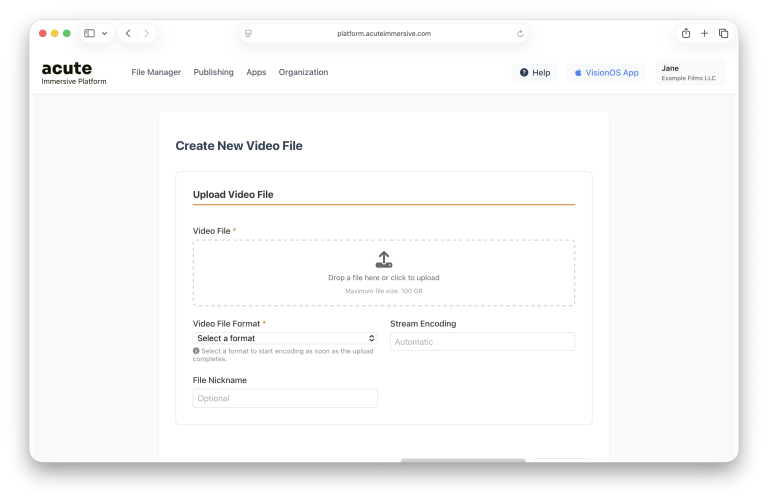
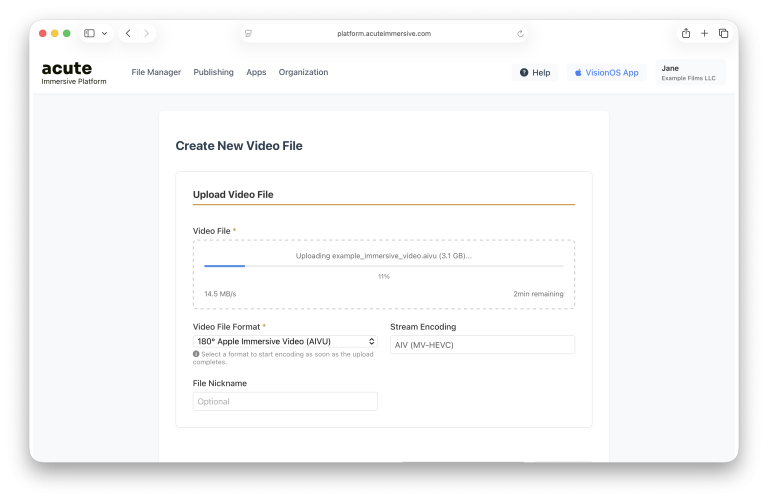
Drag and drop your video file into the Video File box and let it upload. It will take a while.
The file size limit is 100 GB at the moment, which covers most exports for AIV and MV-HEVC. Do not upload RAW and avoid mezzanine formats like ProRes (we still support it).
We support uploads up to 16K at 90fps, although the effective streaming pixel size will be capped at 4320×4320 for AIV and 8192×4096 at 60fps for other formats.
Select the format of your uploaded video. It is important to select the correct one to ensure our encoder generates the stream successfully.
At the moment, the Acute Immersive Platform supports the following immersive video formats:
Apple Immersive Video (.aivu)
Spatial Video (MV-HEVC, rectilinear) taken from iPhone or Apple Vision Pro
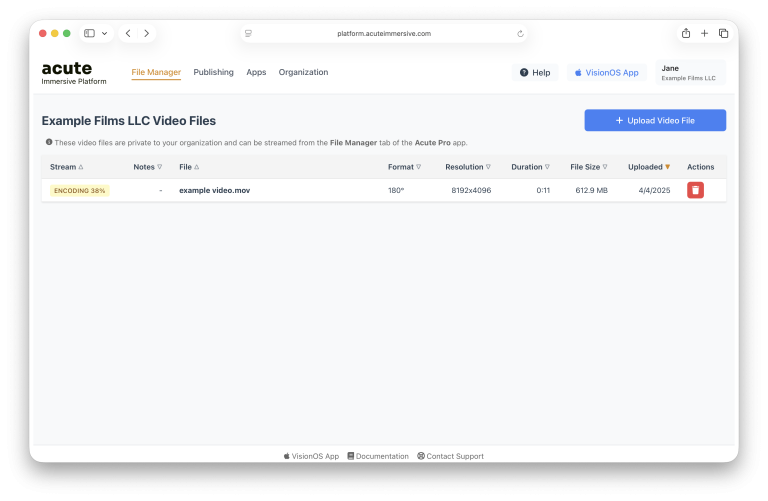
Back in the File Manager, you’ll see that the video is now queued or encoding. It will take a few minutes, or a few hours, depending on the file size and system load.
As a rule of thumb, expect up to 1 hour for each minute of Apple Immersive Video. Smaller formats like Spatial Video are much faster.
Media
Preview a video
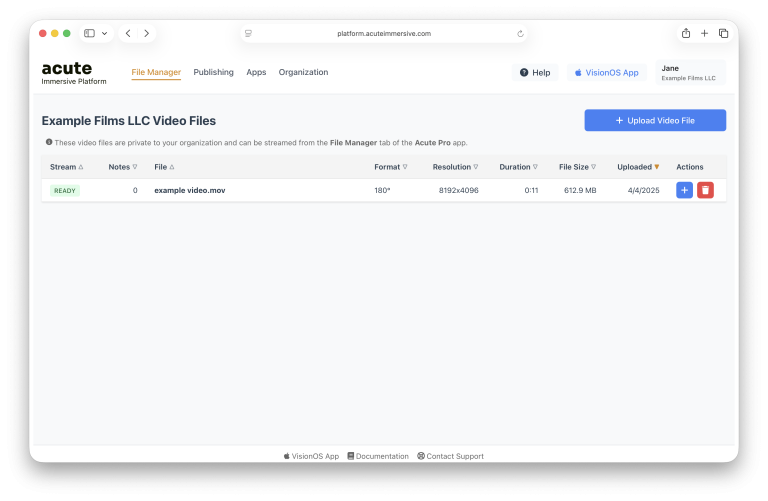
Once the video is encoded successfully, it will be marked as Live. It means that it is available for streaming, but it’s still private to you and your collaborators.
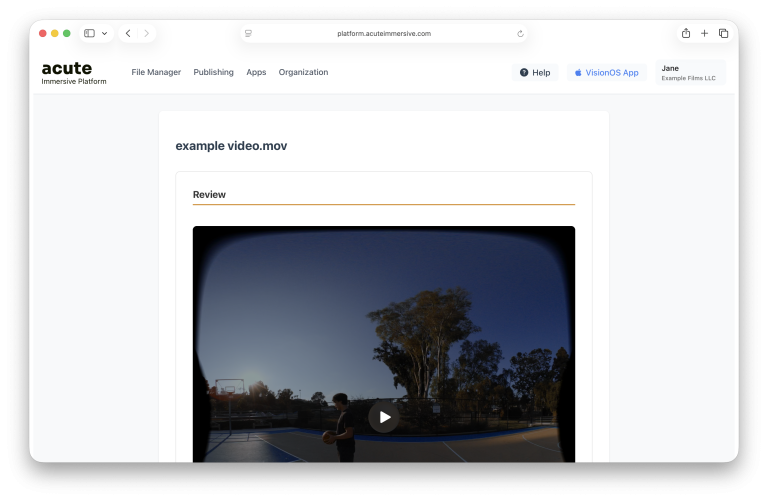
Click the video file row to open its details page.
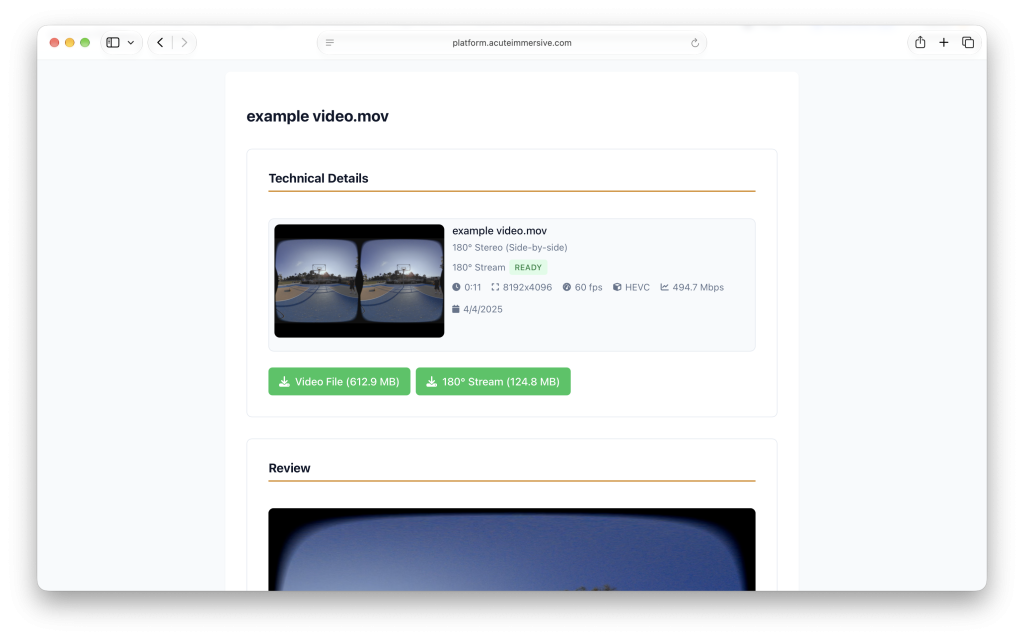
You can play and preview your video in the browser. In the case of stereo videos, it is normal and expected that playback on your desktop shows only one eye.
From the same screen, you can download both the original video file and its compressed stream version. You can use our open-source utility OpenImmersive ↗ to play local videos of any format on your Vision Pro.
Review
View a video in the Acute Pro app
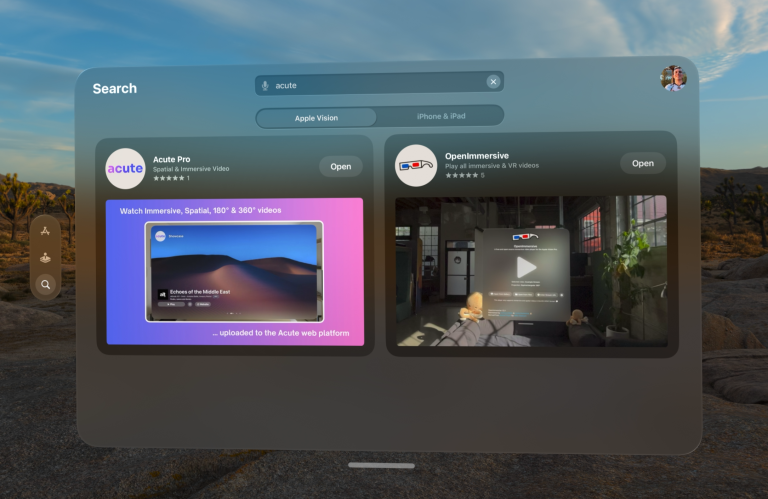
Acute Pro is the companion app to the Acute Immersive Platform for your Apple Vision Pro.
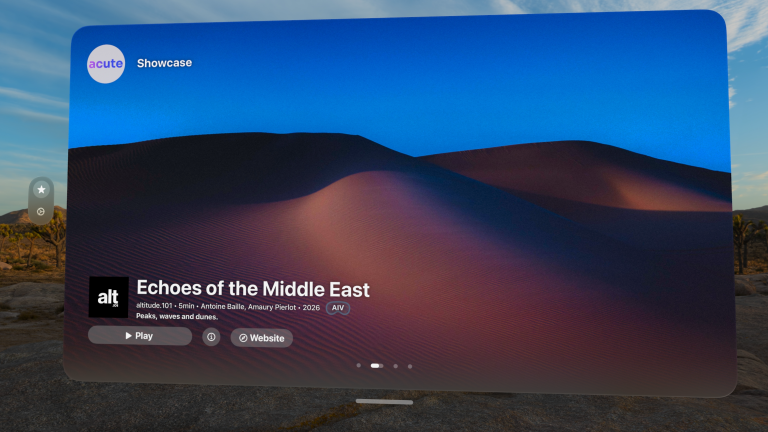
Acute Pro opens in the Showcase tab, where users of the platform can present their work. We’ll go over how to publish your videos in this tab further down.
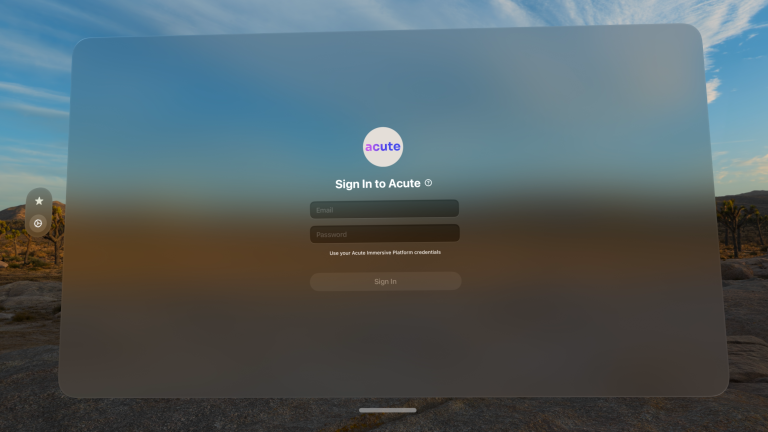
Go to the Settings tab on the left (gear icon). Sign in with your Acute Immersive Platform account credentials.
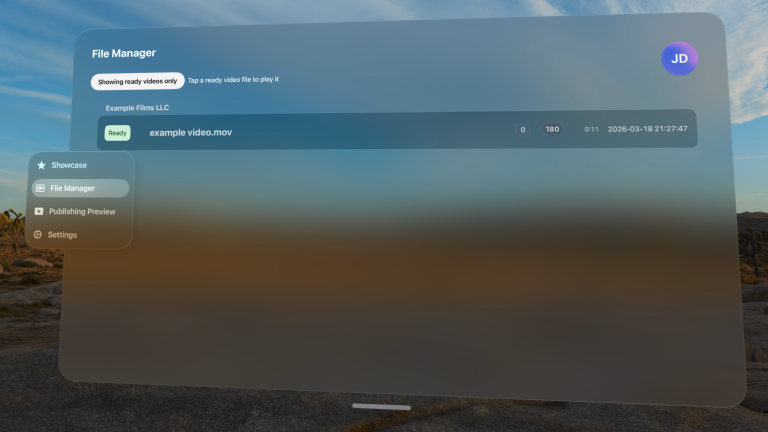
After logging in, the app will open the File Manager tab. Videos that belong to your organization will appear listed there. If you don’t see your videos, try toggling “Showing live videos only” to reveal videos that are not playable.
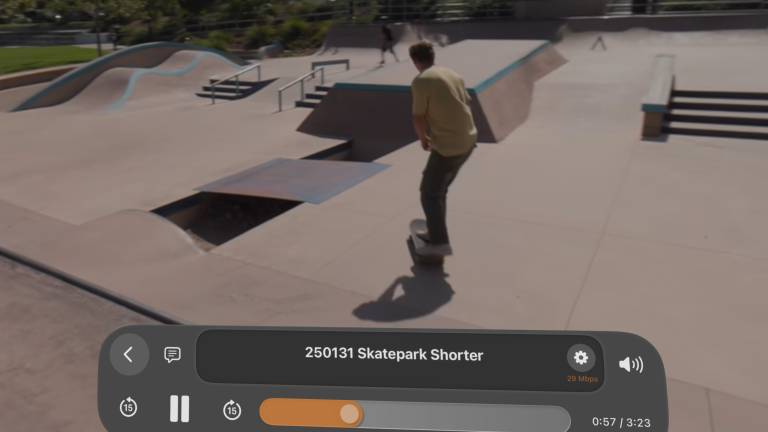
If the video’s Stream Status is Live, tap it on the list to play it. As the video plays, you have access to the same playback controls as OpenImmersive.
Review
Invite collaborators
The Acute Immersive Platform has a powerful role and permission system to help you collaborate with your team on the post-production and distribution of immersive video.
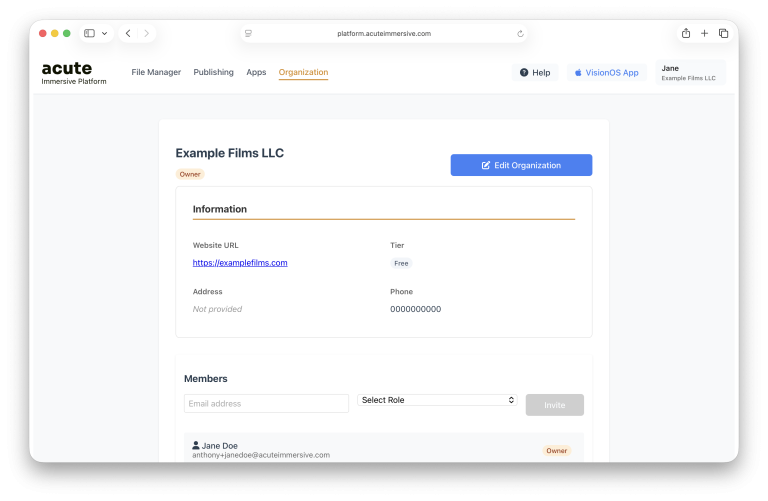
In the Acute Immersive Platform, go to the Organization tab.
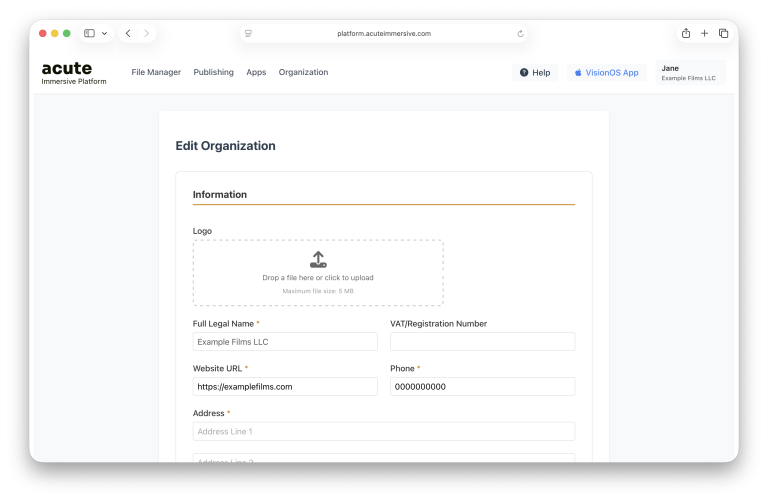
Click the Edit Organization button. Here, you can modify information about your organization when necessary. Changes are only taken into account if you click the Save Changes button at the bottom of the form.
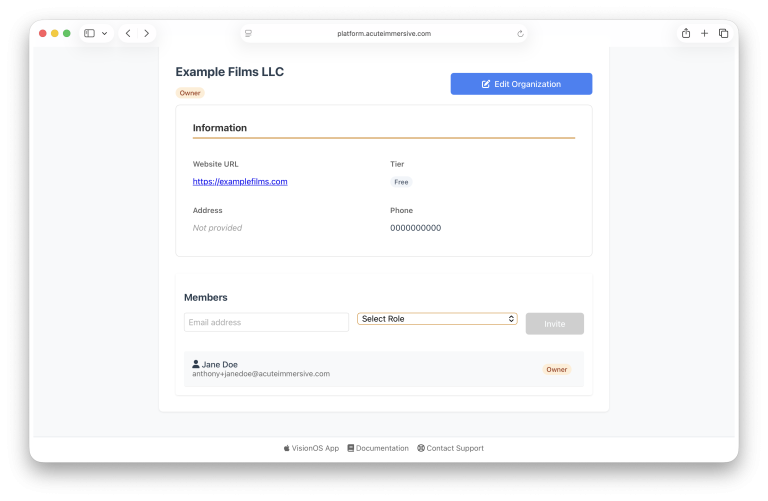
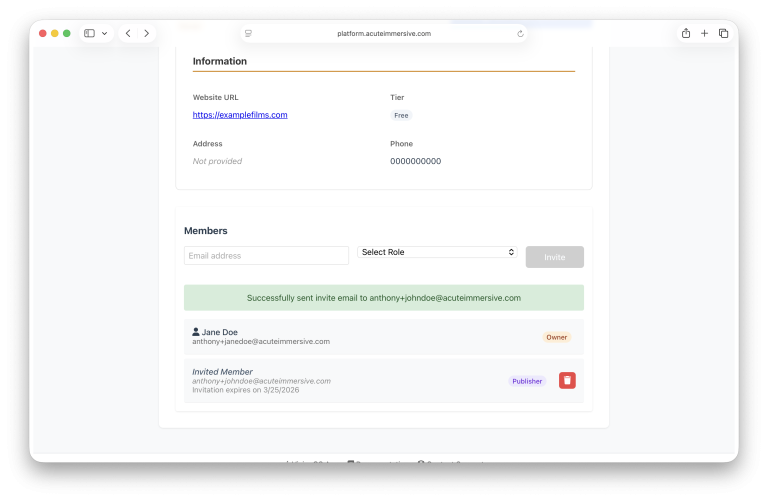
Back on the Organization page, scroll down all the way to the bottom, you’ll see the organization’s member list, listing you as the Owner.
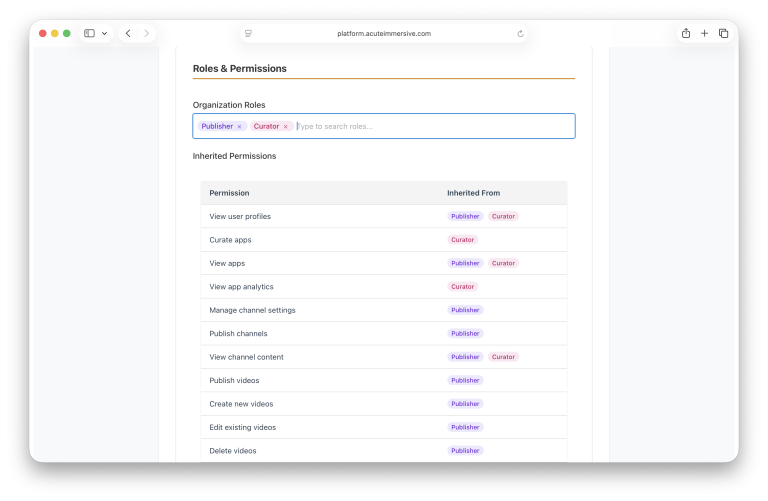
Members can have one or multiple roles, which correspond to different levels of permissions:
Owner: can do everything in the organization; the role cannot be granted or revoked.
Admin: can do everything except remove the Owner.
Publisher: can edit and publish content, but not manage users.
Editor: can create and edit content but not manage users or publish videos.
Curator: can curate app content and see analytics, but not create or edit videos.
Reviewer: can review and add notes to private videos, but not create or edit them.
Viewer: can view all content but not create or edit anything.
Guest: can only view private videos.
Enter the email, select the appropriate role and click Invite. You can rescind invitations using the trash can icon to the right.
Invited members receive an email with a personal signup link that lets them register and automatically join your organization.
Once they register, they will appear with their first and last names instead of “Invited Member.” Click one of them to see or update their roles and corresponding permissions in detail.
Review
Collaboratively review a video
In the Acute Pro app, play a video from the File Manager.
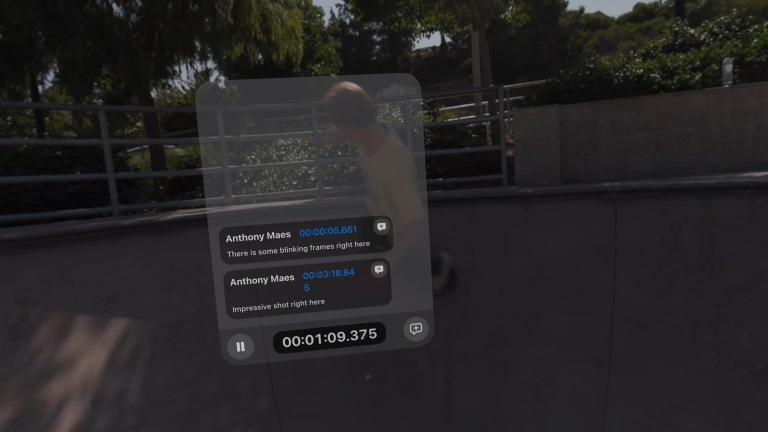
To the right of the back button, tap the Review Panel toggle button (speech bubble). A semi-transparent Review Panel will appear to the left of the Control Panel.
The Review Panel lists existing timecoded notes added to this video file, if any. At the bottom, there is a precise timecode readout, a Play/Pause button, and a New Note button (speech bubble with + sign). This button is only available if your organization role is Reviewer or above.
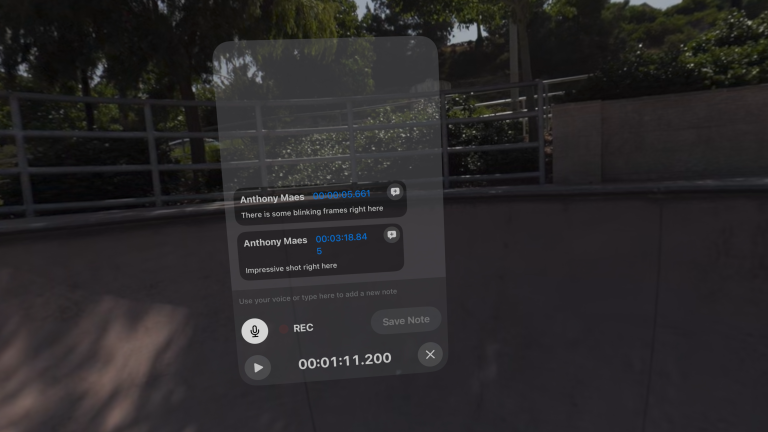
Click the New Note button to add a new note, or tap the timecode on an existing note to add a reply to its thread. By default, speech transcription starts when starting a new note or reply — a flashing “REC” indicator shows when it’s active. Turn it on or off with the Speech button (microphone), or type/correct the note with the keyboard.
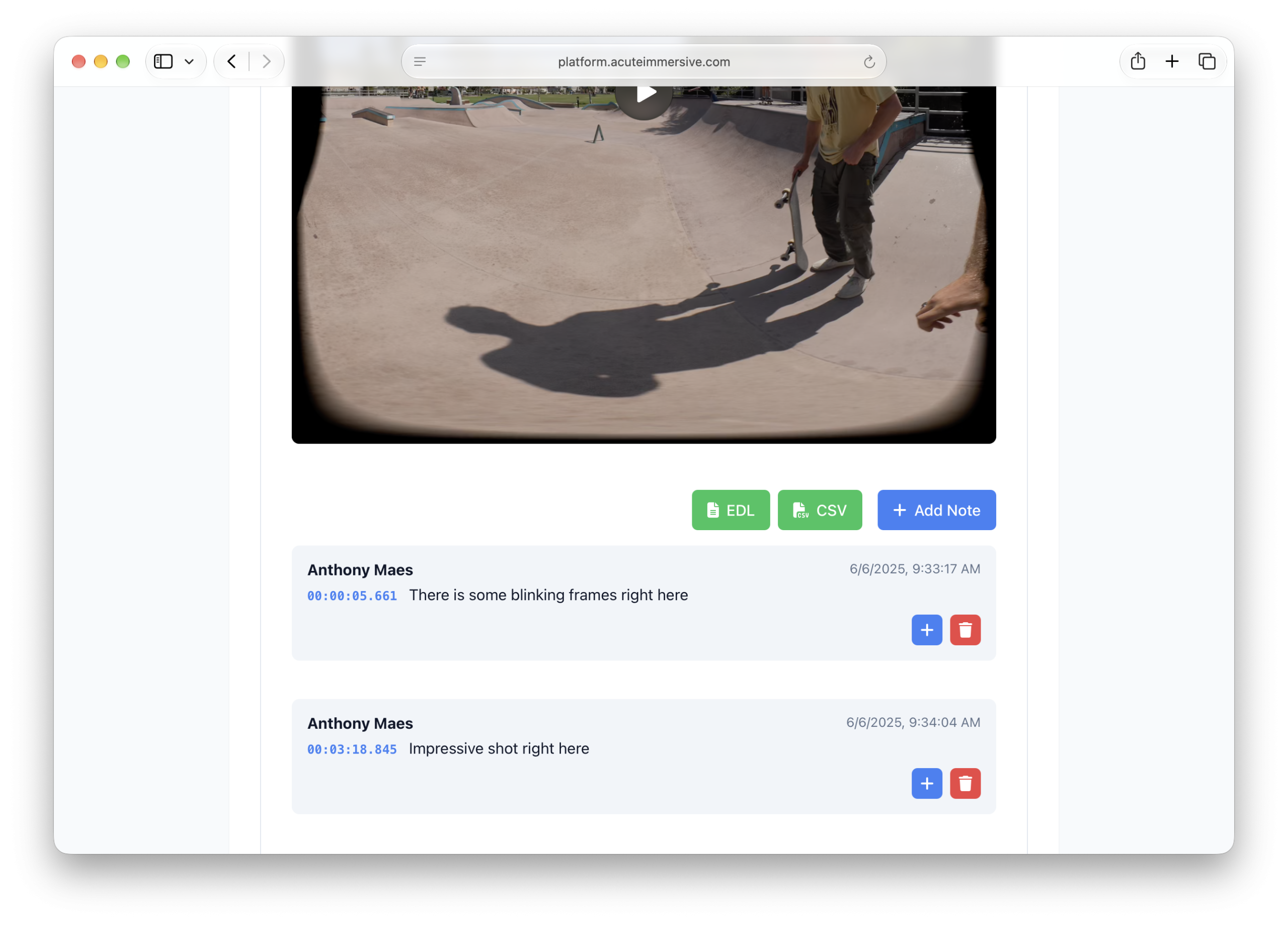
When you’re done, select Save Note or Save Reply. You’ll find the notes under the video player in the Details Page (eye button) of the video file.
Export the notes as an EDL file to import them into a DaVinci Resolve timeline, or as CSV file to use in your custom workflows.
Publish
Prepare a video for publishing
The Acute Immersive Platform offers two ways to open access to your videos outside your organization: publish in an app (your own app or Acute Pro’s Showcase tab), or share in Acute Pro with a private Share Link.
In either case, you need to prepare the video for publication by associating the video file with metadata: title, description, poster, and more.
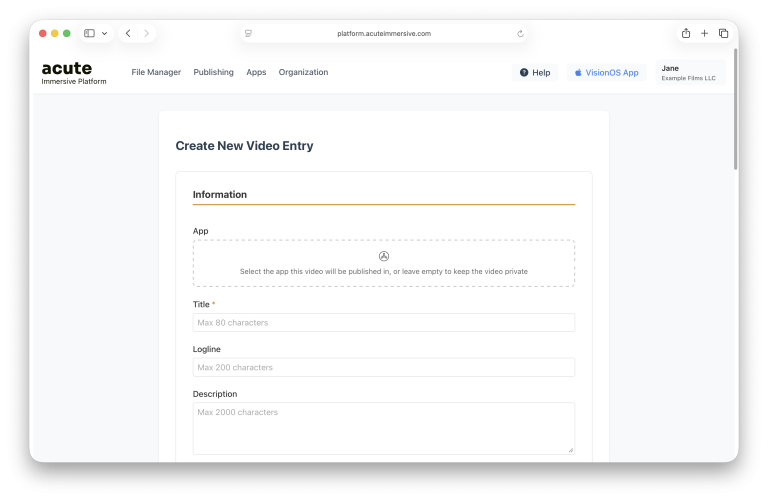
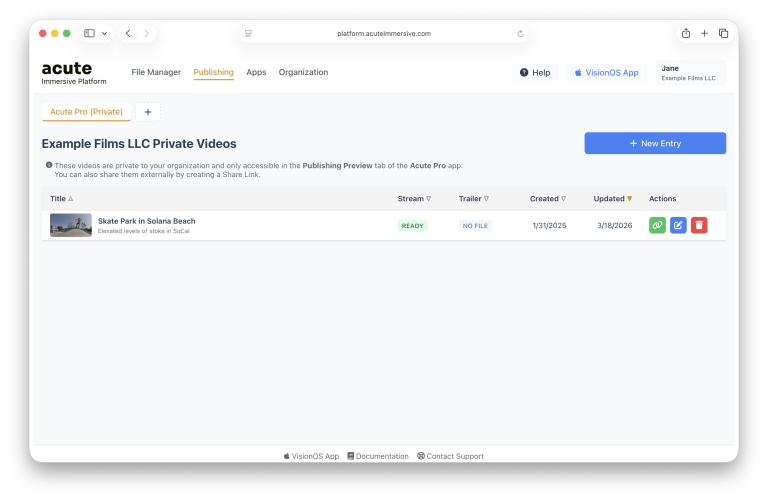
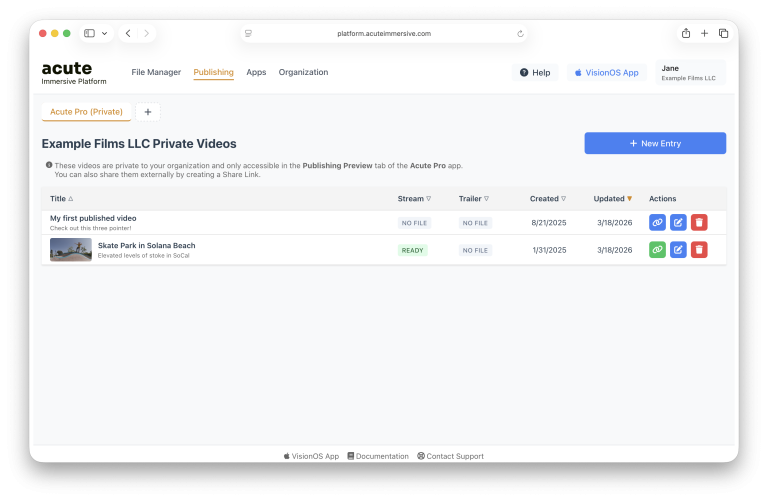
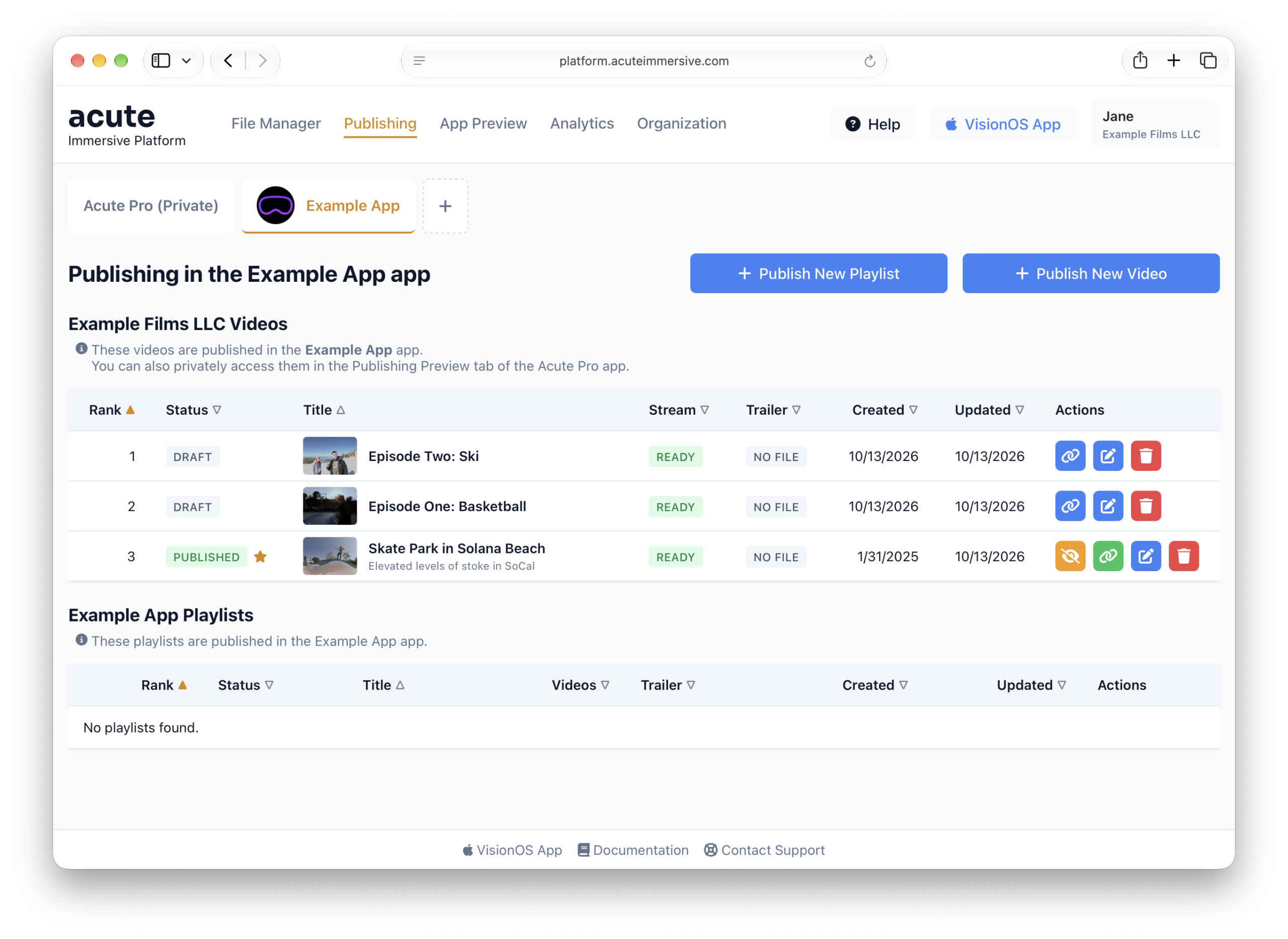
In Publishing, click the New Entry button.
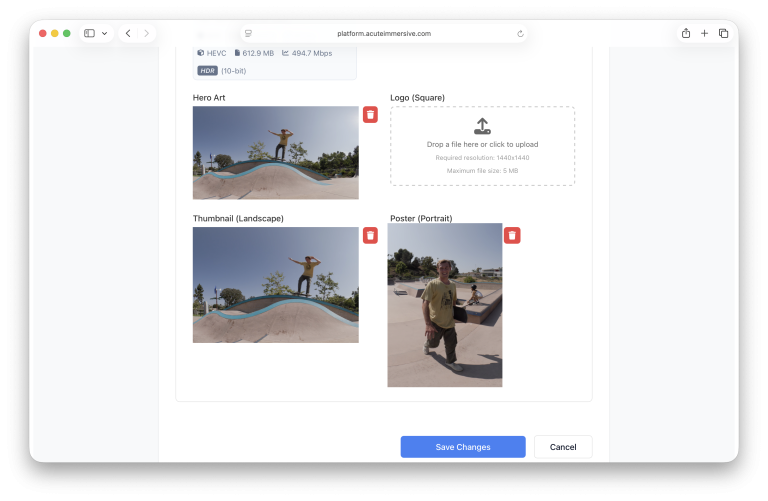
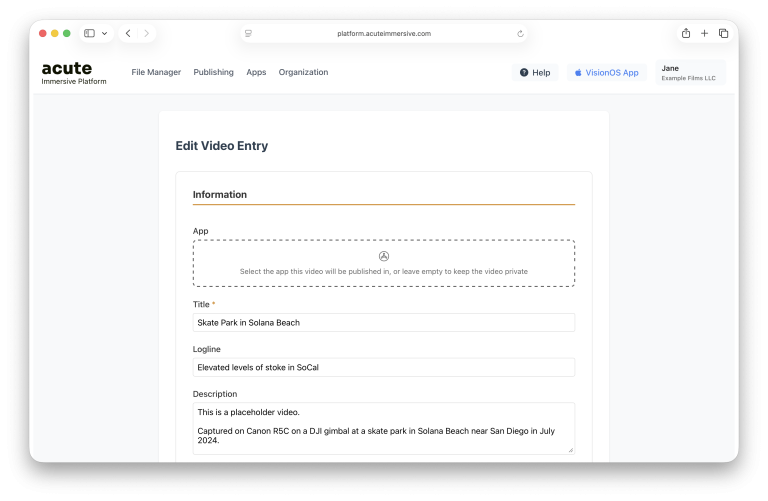
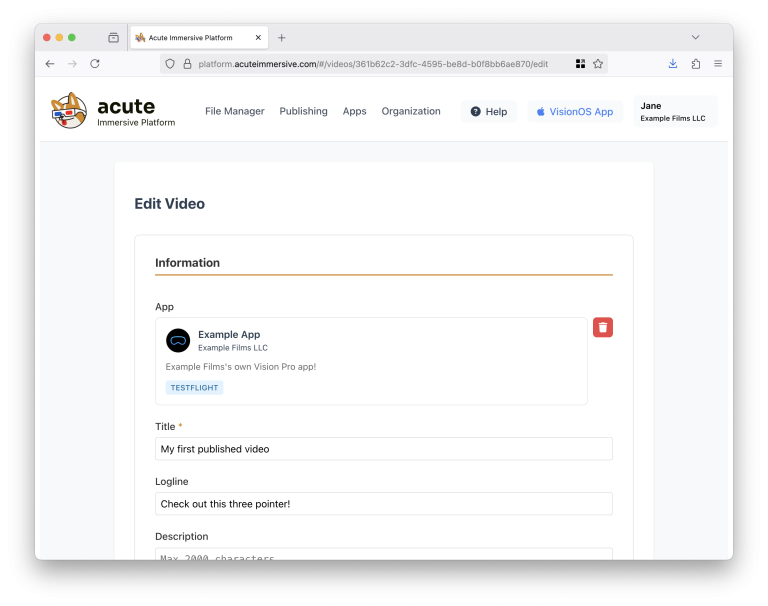
The form has a lot of fields (information, production properties, image and video assets), but you can create a video just by entering a Title, you don’t have to fill everything immediately. You can leave the App field empty for now.
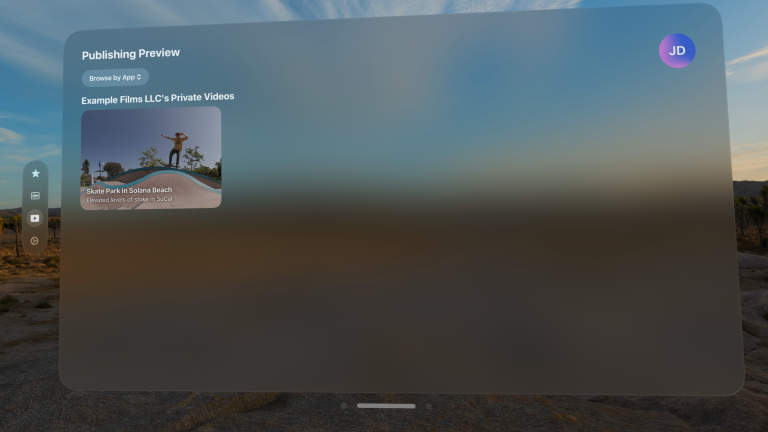
Once you hit Create Video at the bottom of the form, a video record is created and visible from the Publishing page. The video becomes visible in the Acute Pro app’s Publishing Preview tab as well.
You’ll notice the Stream and Trailer columns: each video entry has two video file slots, with a corresponding status.
No File: the slot is empty.
Standby: the video file is uploaded, but encoding has not started, because Format needs to be specified.
Queued: the video file is ready and waiting for a machine to pick up its encoding.
Encoding: the video file is being processed for streaming; this can take from 15 minutes to multiple hours depending on its size.
Ready: encoding is complete and the video stream is playable in the Acute Pro app.
Failed: the video file cannot be played, an error occurred during processing.
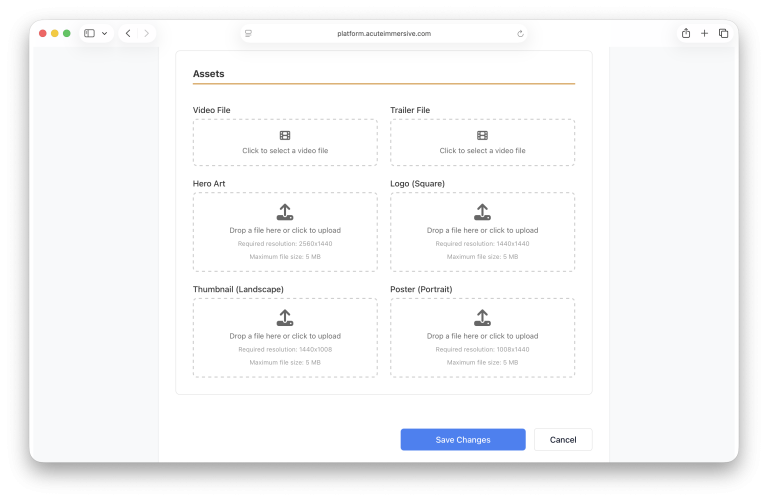
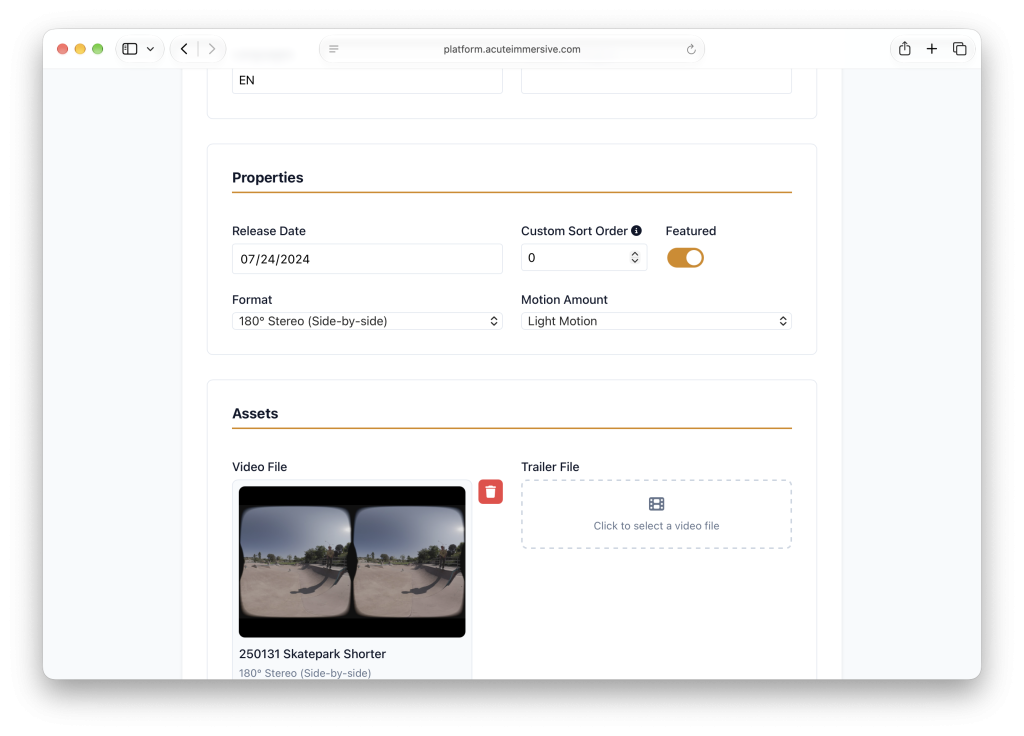
Click the blue Edit button (pen icon) under Actions to modify the video, and scroll down to the Assets section. This is where you attach video files to video entries.
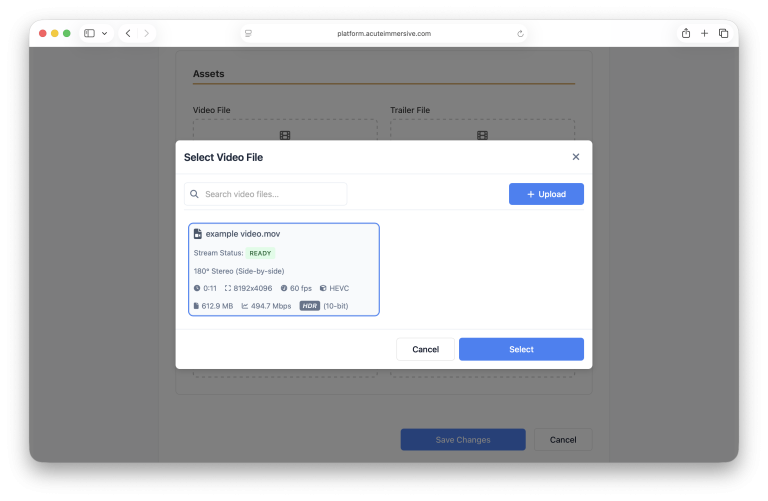
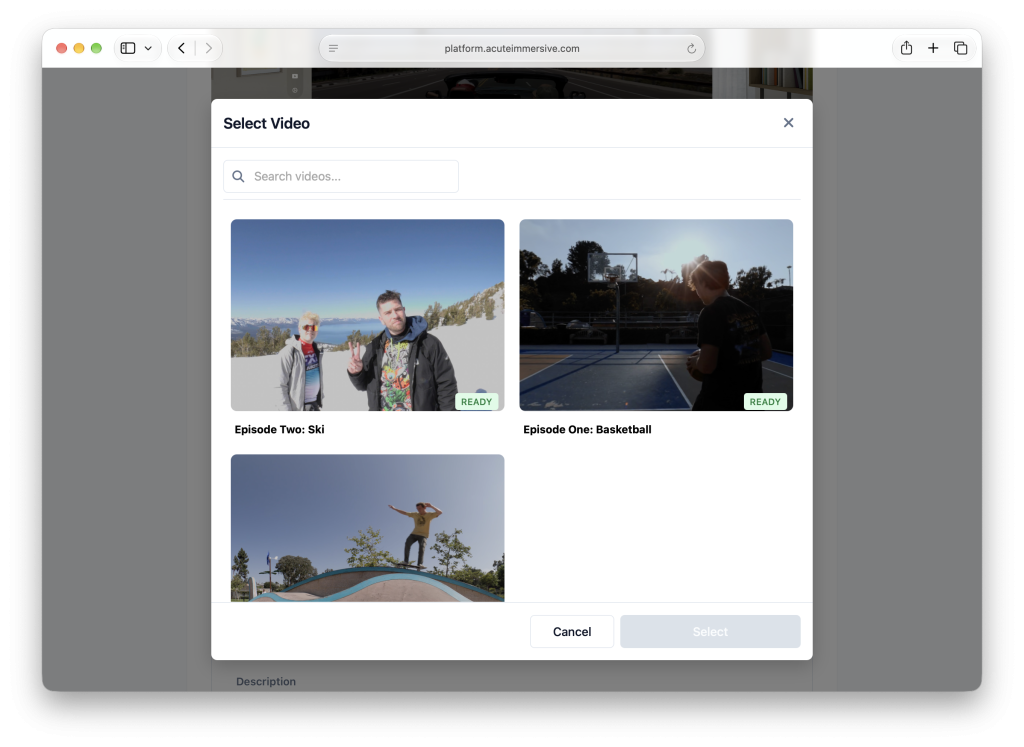
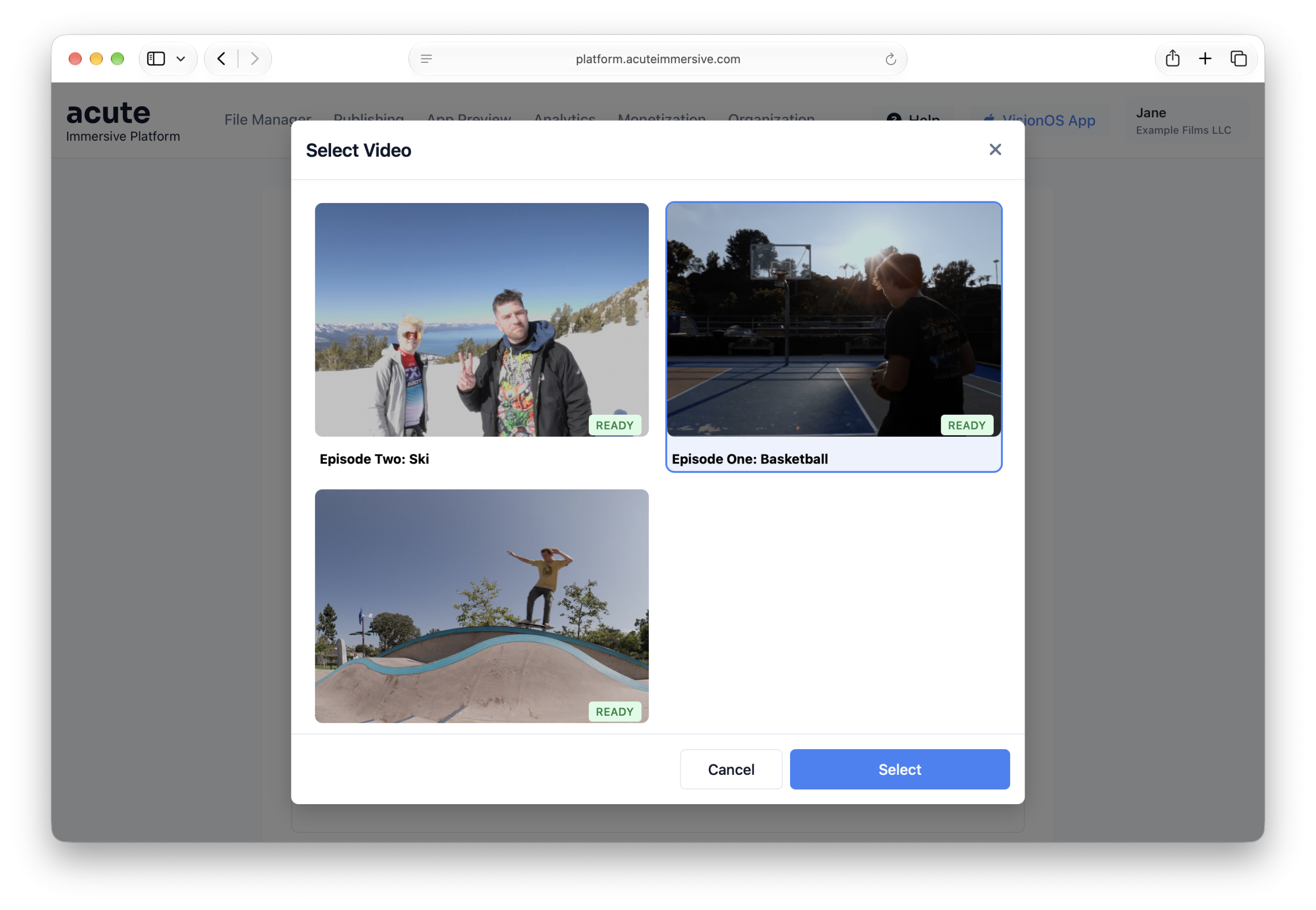
Click the Video File field to open a popup where you can choose among the previously uploaded video files from the File Manager, then click Select to confirm.
It’s a good idea to fill the metadata fields as much as possible if you intend to present the video to the public or to customers. Click the Save Changes button when you’re done.
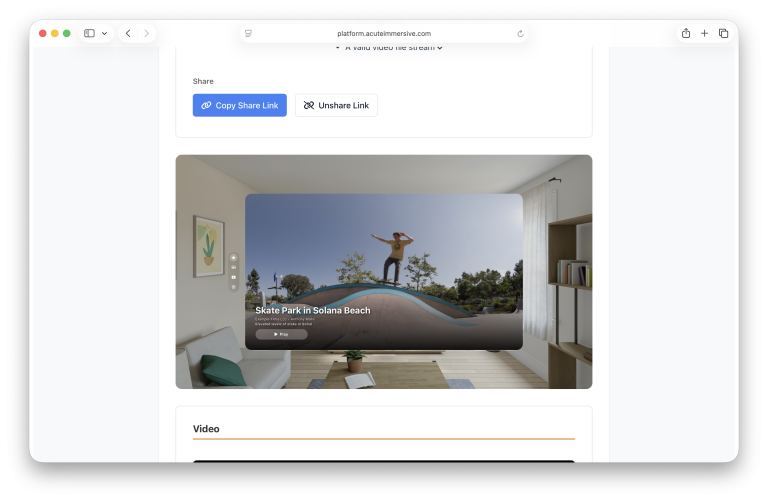
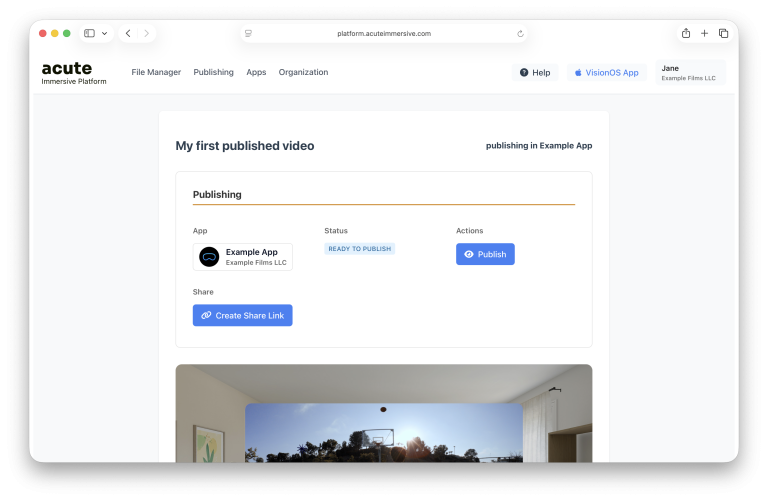
After saving, you’ll be taken to the video’s preview page, which shows a mini-simulator previewing the presentation in a Vision Pro app (as of writing, the preview may have layout differences with the actual app).
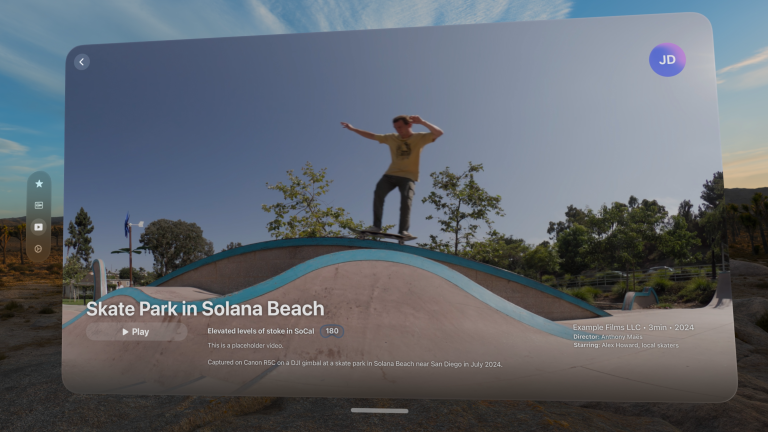
In the visionOS Acute Pro app’s Publishing Preview tab, you can now see your video as it would look when available in a white-label app based on the Acute Immersive Platform.
Publish
Create a share link
The Acute Immersive Platform can generate Share Links, which are deep links to a video you can share with people outside your organization. They don’t require an Acute user account.
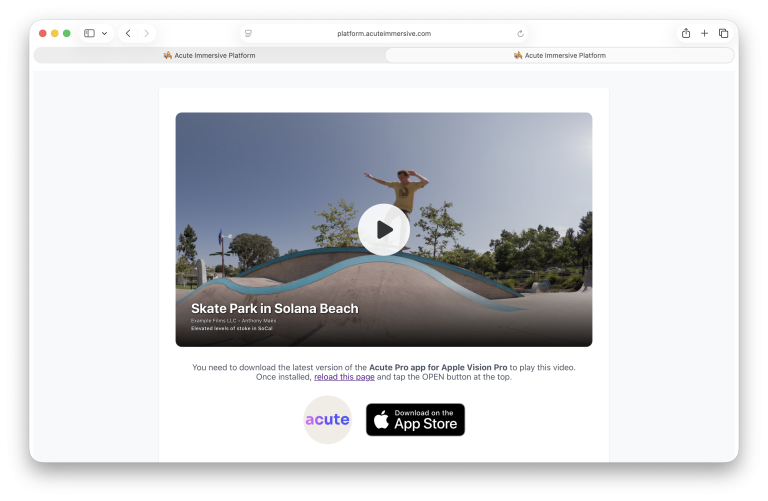
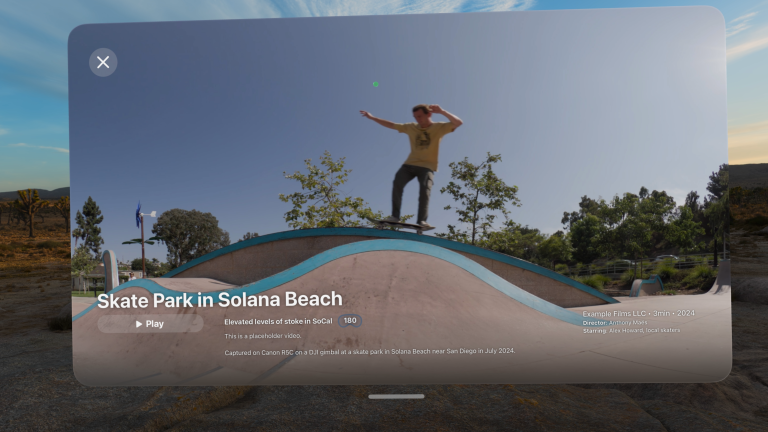
When opened on the Apple Vision Pro, Share Links directly open the Acute Pro app and load the corresponding video. On other devices, or if the app is not installed, they present a small web preview of the video with an App Store link for the Acute Pro app.
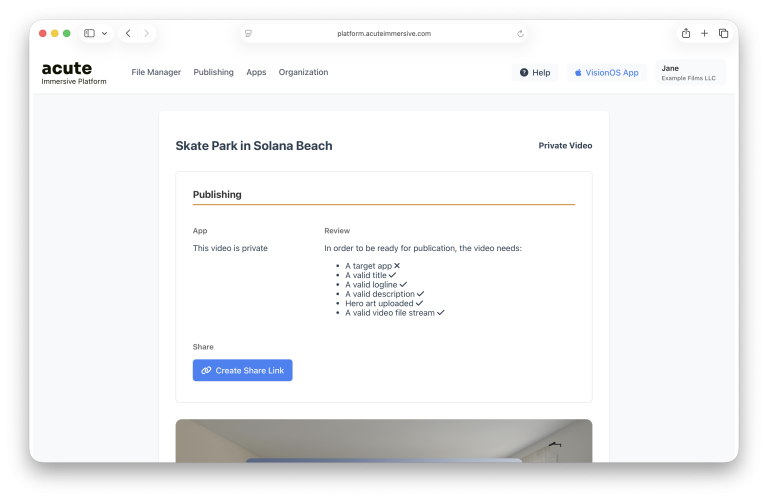
On the Publishing page, click one of the videos to open the video preview, then click the Create Share Link button.
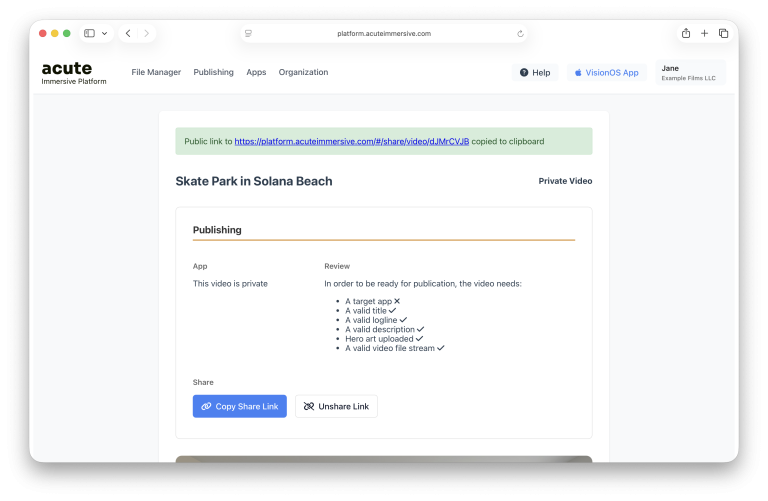
The generated link is now copied to your clipboard. You can now share this link privately with people outside your organization.
Anybody with the link can now see a preview of the video metadata in the web browser.
On Apple Vision Pro, the link opens the Acute Pro app directly, if it’s installed. No user account is needed to play the video.
You can revoke the share link at any time with the Unshare Link button. The link becomes invalid for everyone forever; creating a new share link generates a new URL.
Publish
Publish a video in Acute Pro
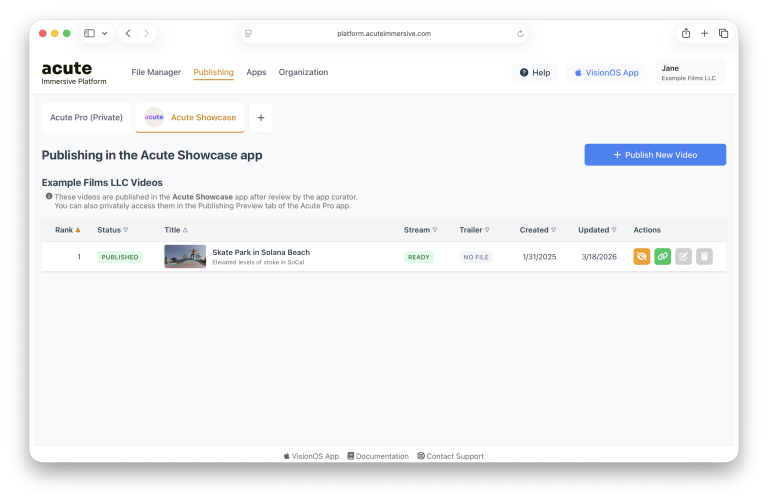
The Acute Immersive Platform lets you publish your videos in Vision Pro apps, without any code change or App Store update needed. Some organizations manage their own app, but anyone can publish in the Acute Pro app’s Showcase tab.
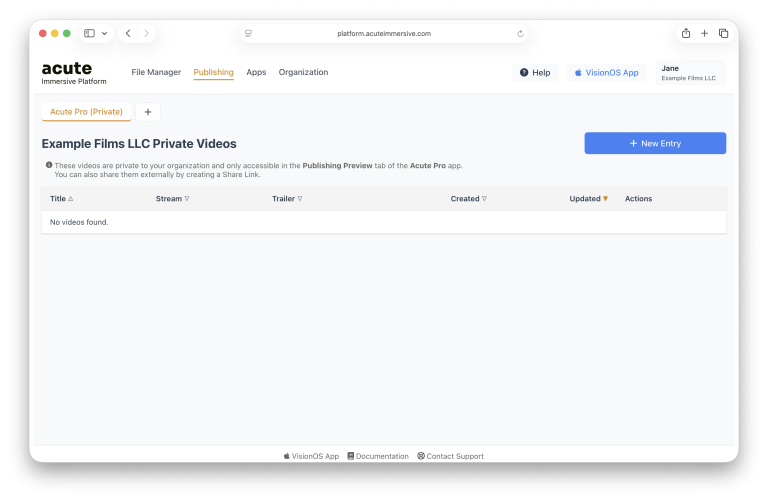
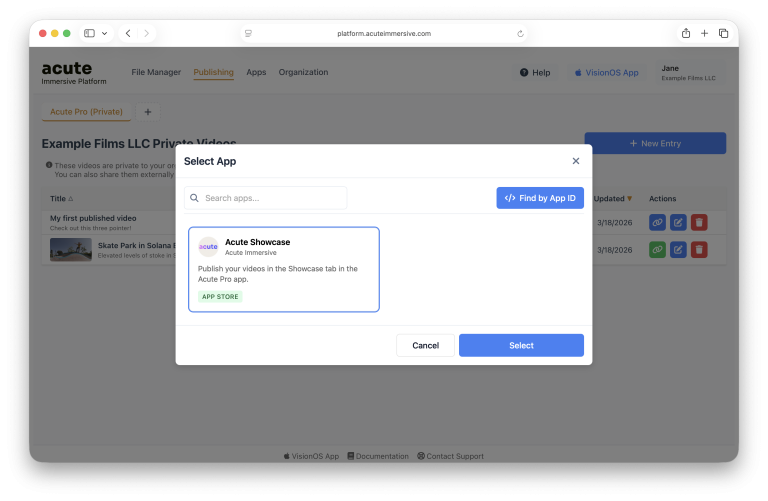
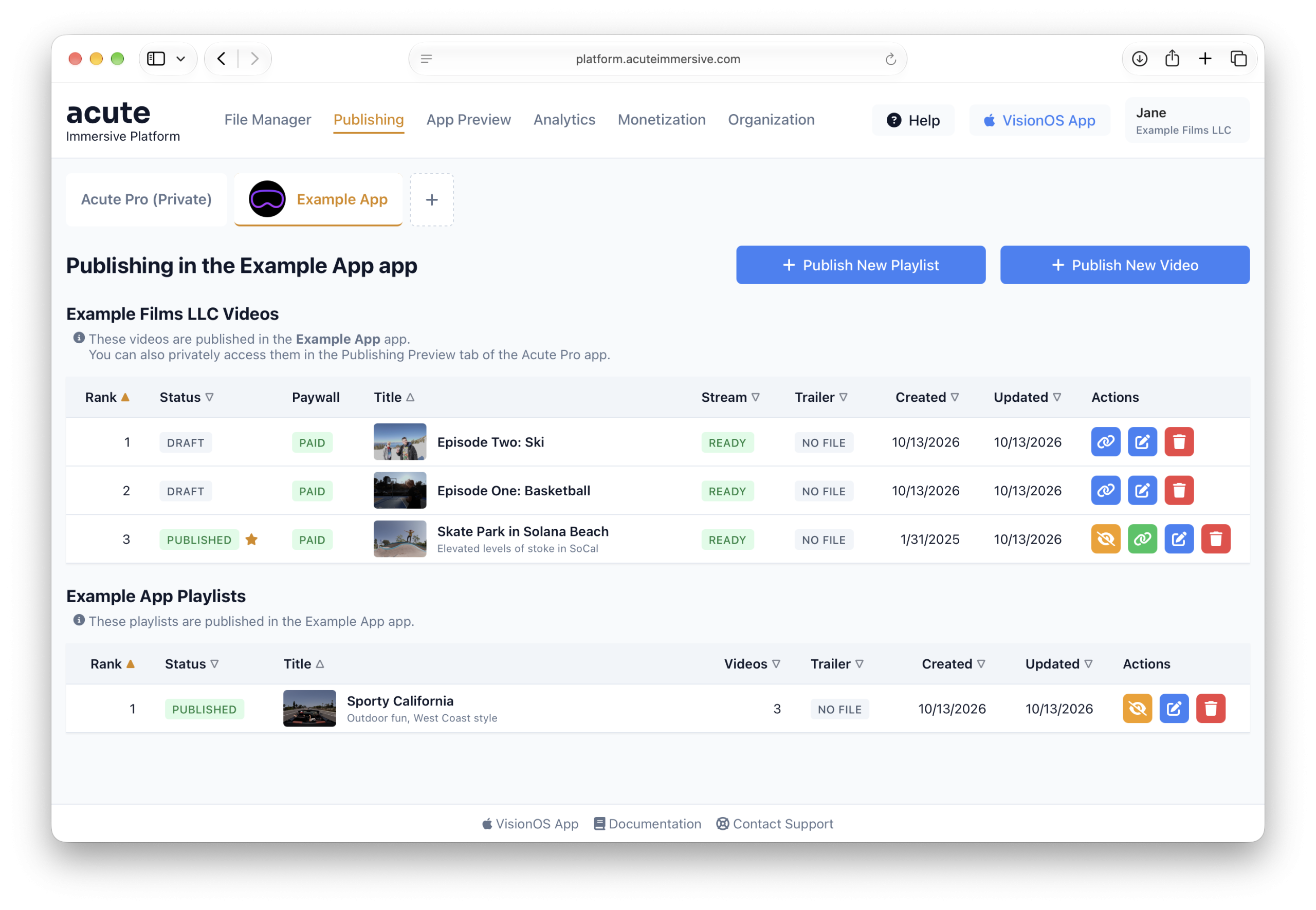
In the Publishing page, videos entries are in the Acute Pro (Private) tab by default. This means they remain private to your organization. Click the “+” icon to the right of the tab.
A pop-up appears with an app selection menu showing the apps you can publish in. Select Acute Showcase.
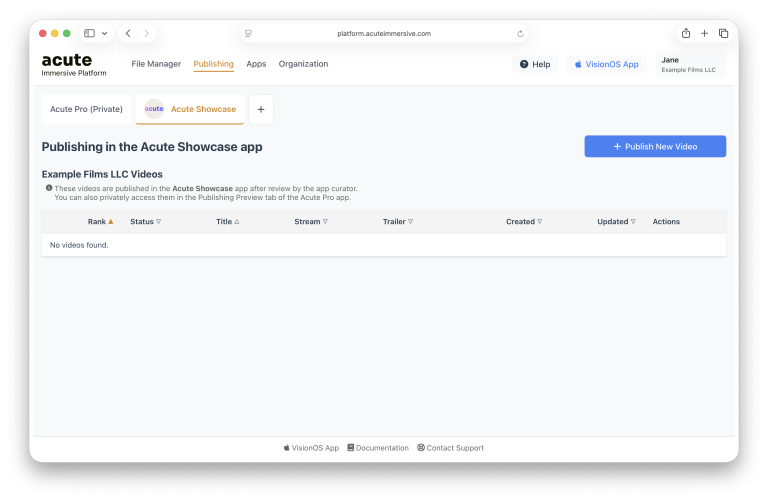
In the new tab that appears, click Publish New Video.
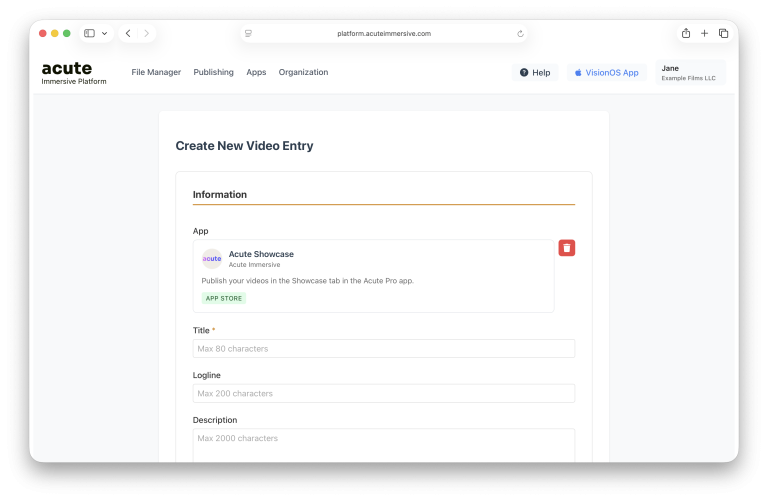
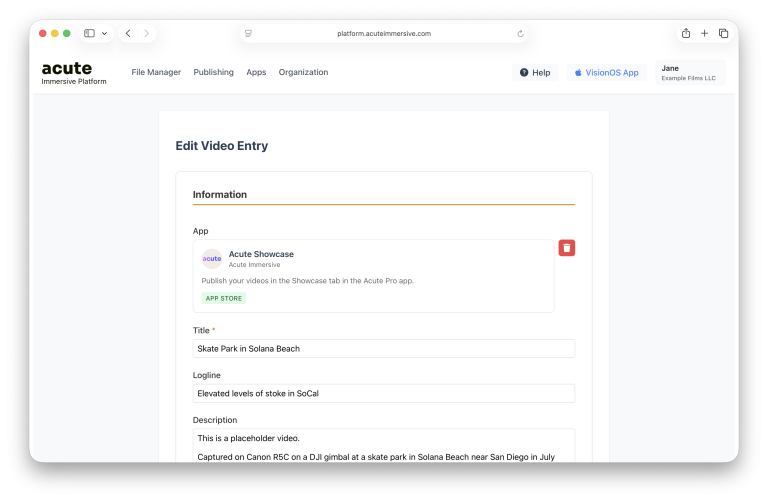
The form is exactly the same as the one for private videos, except the app field is populated. You can use the Trash icon to detach the video from the app and make it private again.
You can also edit an existing private video and click the App field to target Acute Showcase. A video entry can only target one app at a time; if you’re publishing in multiple apps, duplicate the video.
After you’ve selected an app, scroll to the bottom and hit Save Changes.
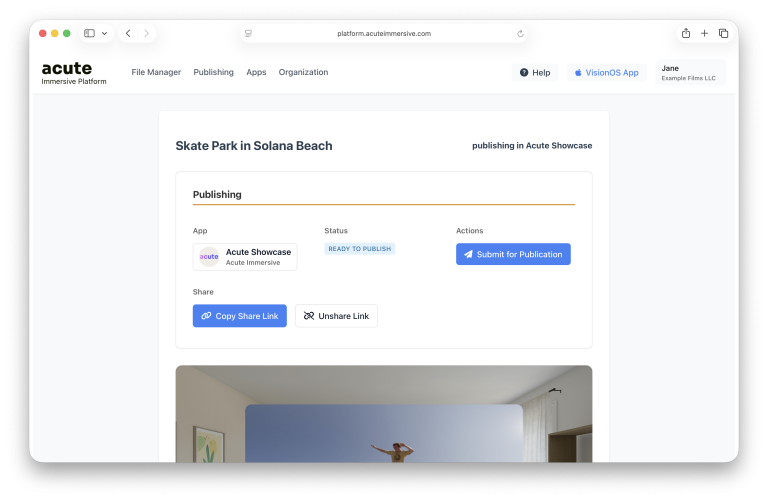
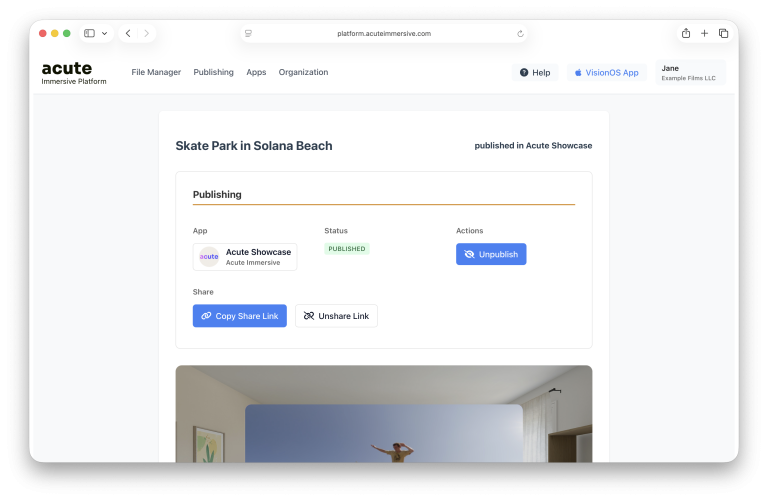
Then navigate to the Video Details page, where you find the controls for publishing your video.
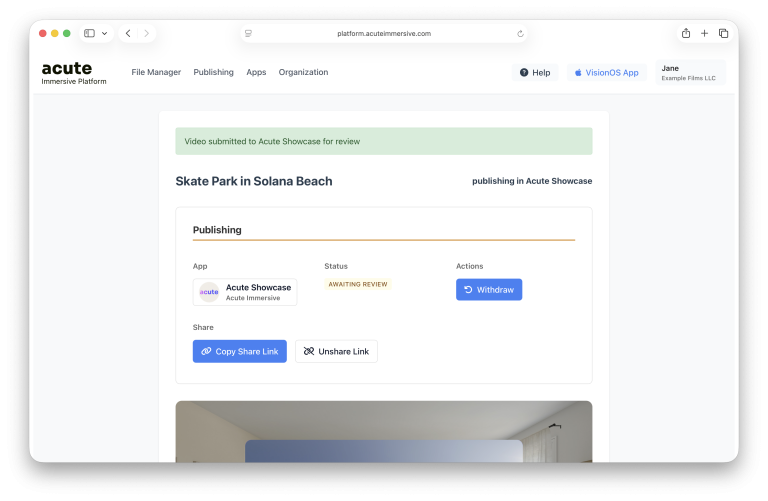
Click Submit for Publication (paper plane icon) to submit the video to the Acute Showcase curators. From this point on, you can no longer modify the video until it is either rejected or unpublished, but you can withdraw the submission at any time.
You will receive an email every time the publication status changes:
Draft: the video is private or missing mandatory fields for publication.
Ready To Publish: the video can be submitted for publication.
Awaiting Review: the video is awaiting review by the app curators.
In Review: the video is being considered by the app curators.
Needs Revision: the video was not accepted by the app curators and may be submitted again after changes.
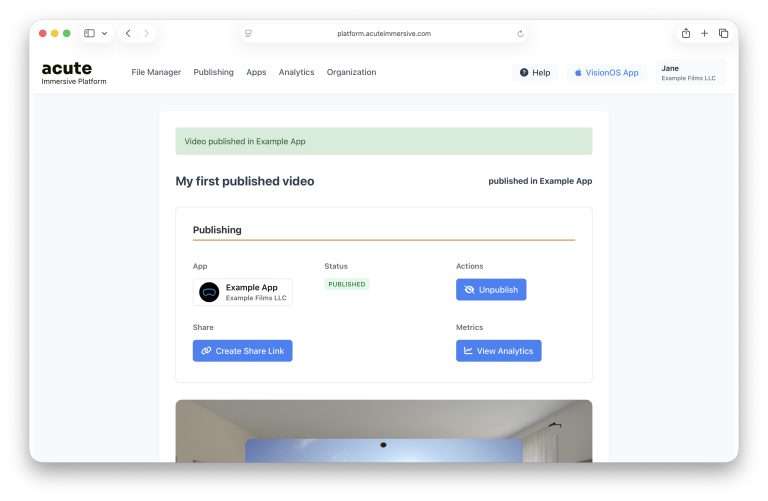
Published: the video is public and live in the app.
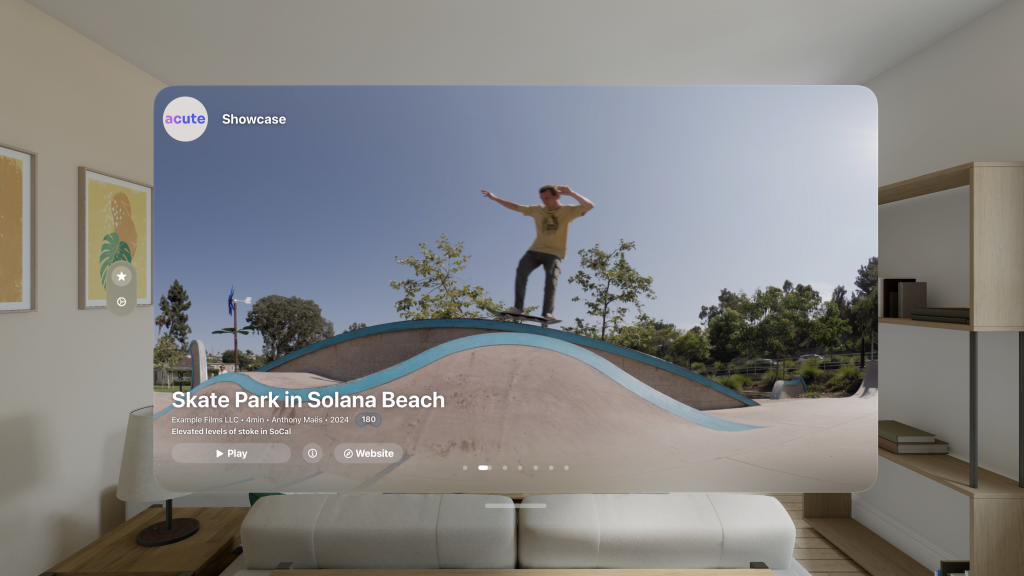
Once your video is published, it becomes visible in Acute Pro in the Showcase tab. No user account or share link is needed to find and play your video.
You cannot edit a published video, but both you and the app curators can Unpublish it at any moment with the slashed-eye button.
Once unpublished, a video can be edited again, but must go through the review flow to be published again.
Distribute
Publish a video in your app
When you have your own app to distribute content in, the publishing flow is simpler: you can Publish and Unpublish directly and keep editing rights while the video is published.
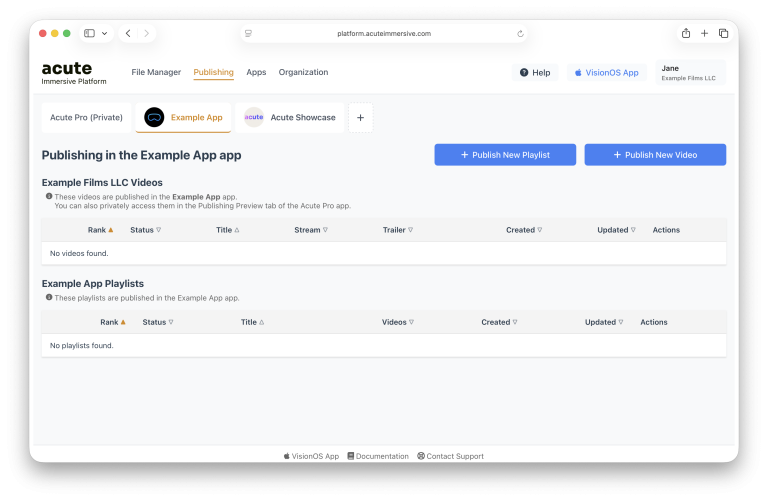
Go to the Publishing page. The tab for your app is always visible, even when it contains no videos.
Just like the Acute app, you can add videos with Publish New Video or by editing an existing video in your Private tab.
An important area of the video entry form is Release Date, Custom Sort Order, and Featured.
Published videos in your app are sorted by Release Date, going from most to least recent. If the Release Date field is left empty, the video entry’s creation date is used instead.
Custom Sort Order can be used to trump release date ordering. Set it to a negative number (e.g. -10) to push a video to the front, and set it to a positive number (e.g. 10) to push it to the back.
Featured is a checkbox to make the video more prominent in the app’s content catalogue. Most app built with the Acute Platform present featured videos in a big Apple TV-style carousel, and show non-featured videos in a grid of thumbnails.
After you create or edit the video, the last step to make it visible in your app is to click the Publish button (eye icon). This lets you toggle the visibility of your app’s content directly, without code changes or App Store build updates.
Changes to the publishing status of your video are reflected immediately in your app.
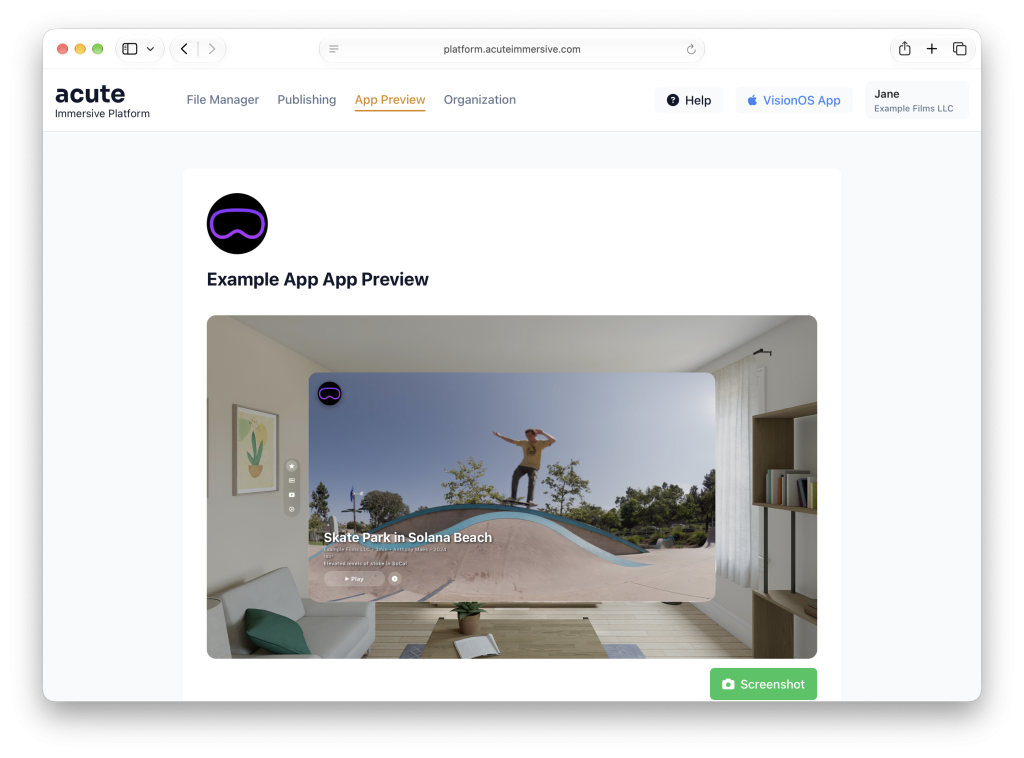
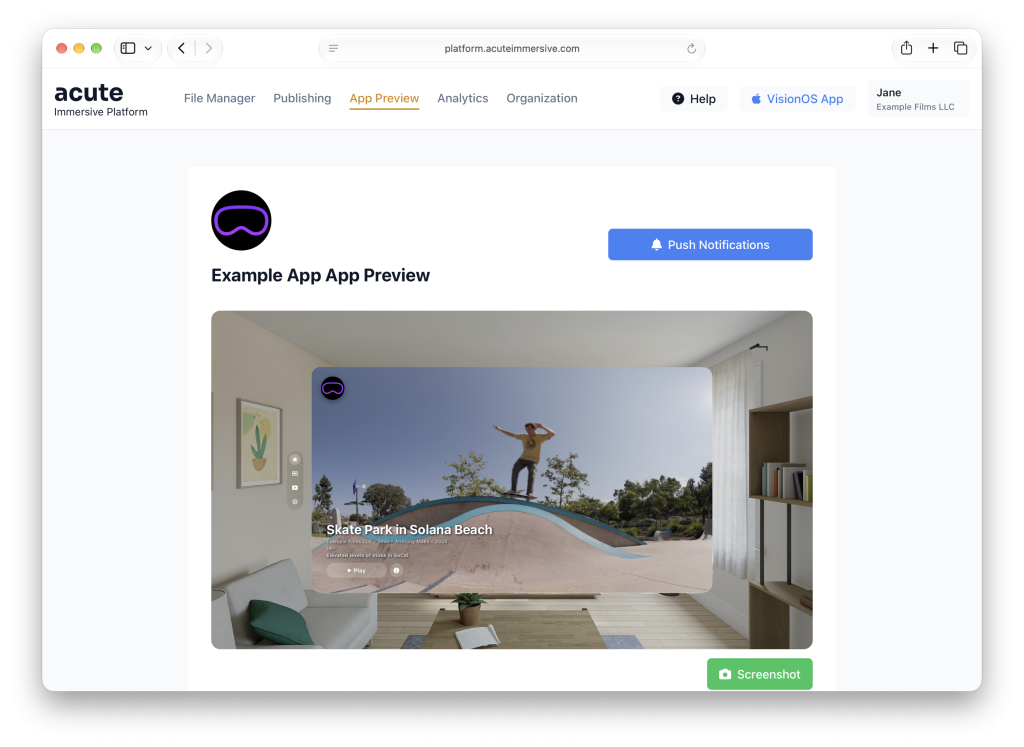
Go to the App Preview tab to see at a glance what your app’s main screen looks like. You’ll see all your featured videos appearing in a carousel.
Distribute
Group videos in a playlist
Some videos, like songs in a concert, can be grouped together in a playlist to make your app’s navigation simpler for your users.
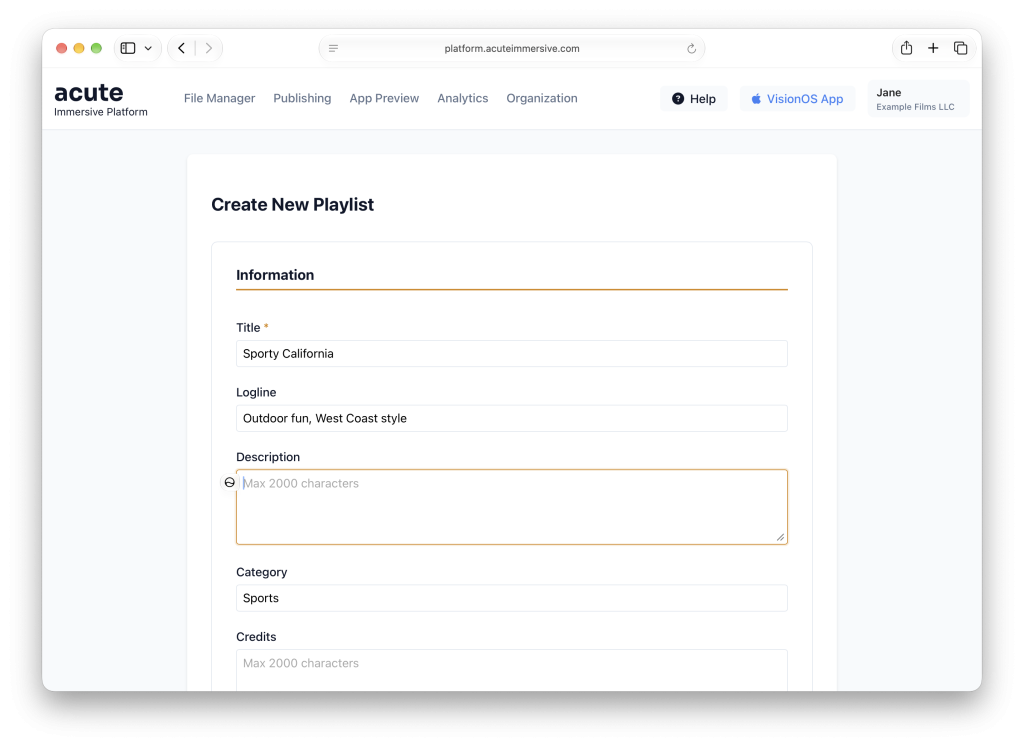
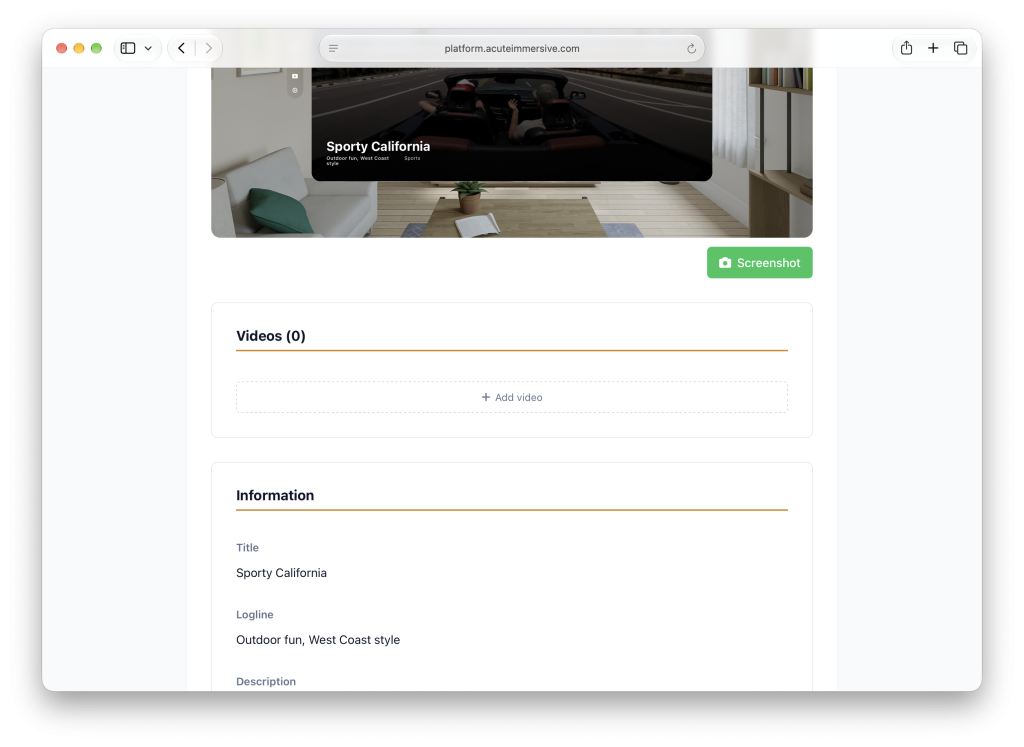
Go to the Publishing page. In the tab for your app, click Publish New Playlist.
Just like you would for a video entry, fill in the various metadata fields.
Click Create Playlist when you’re done.
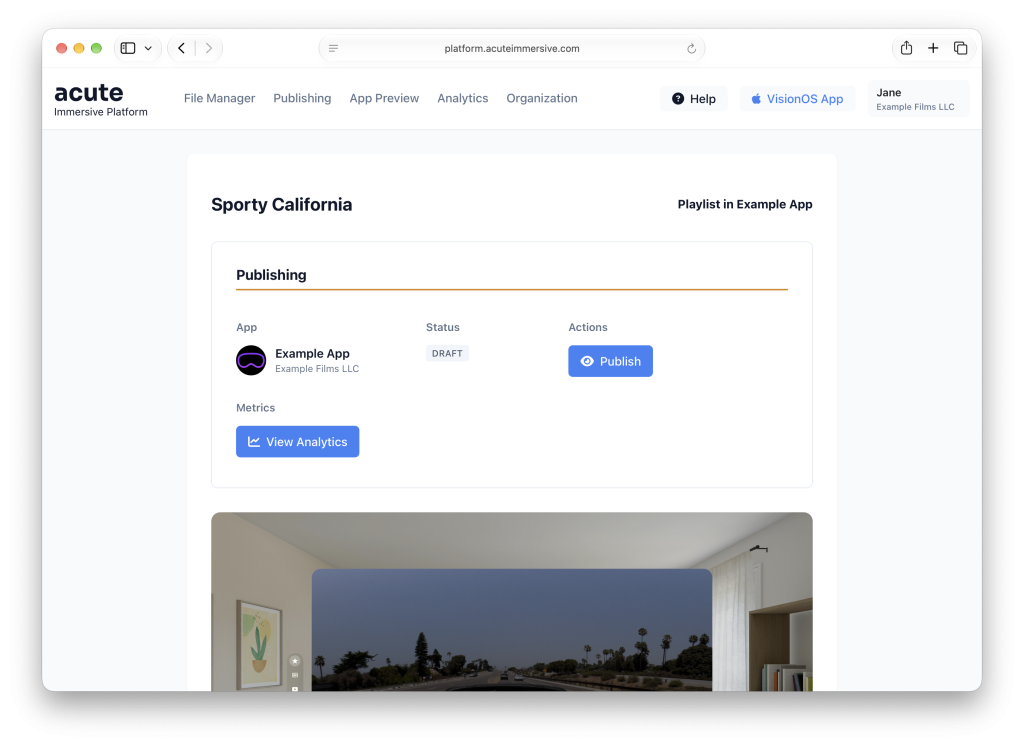
In the details page of the newly created playlist entry, scroll down to the Videos section and click the “+” button.
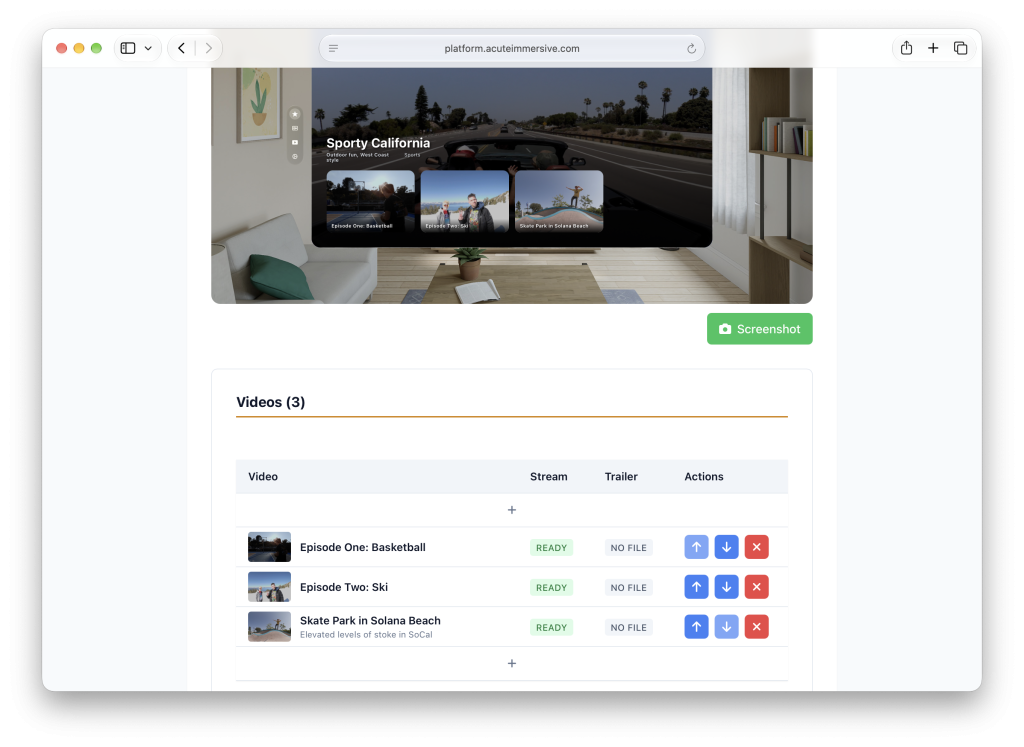
Select the first video for your playlist, and keep adding until you’re done.
The simulator preview shows you what the playlist screen will look like in the app. Unlike videos entries at the app’s top level, which are sorted by release date, playlist videos are sorted manually using the arrow buttons.
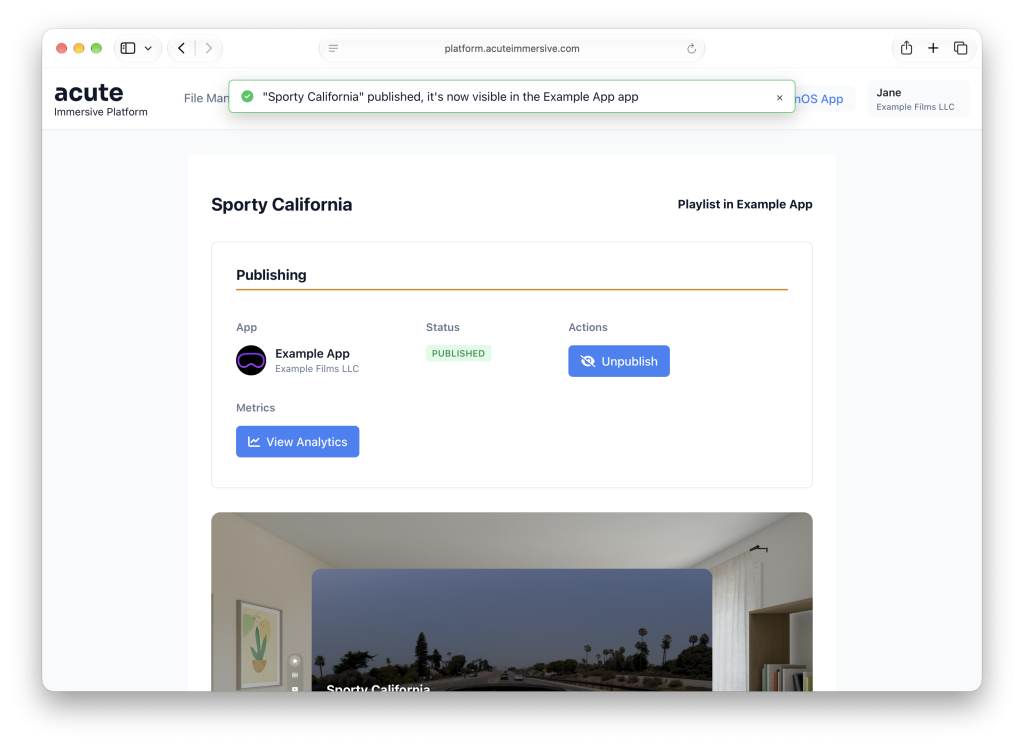
Just like a video entry, click the Publish (eye) button to make the playlist publicly available in your app. By default, playlists and video entries appear together in carousels and catalogues, sorted by release date and custom sort order.
Grow
Send push notifications
Push notifications are the most effective way to tell your most loyal users to check out the video you just published.
The Acute Immersive Platform lets you send push notification without the need of a third party service. Notifications are sent manually, so you don’t accidentally spam your users.
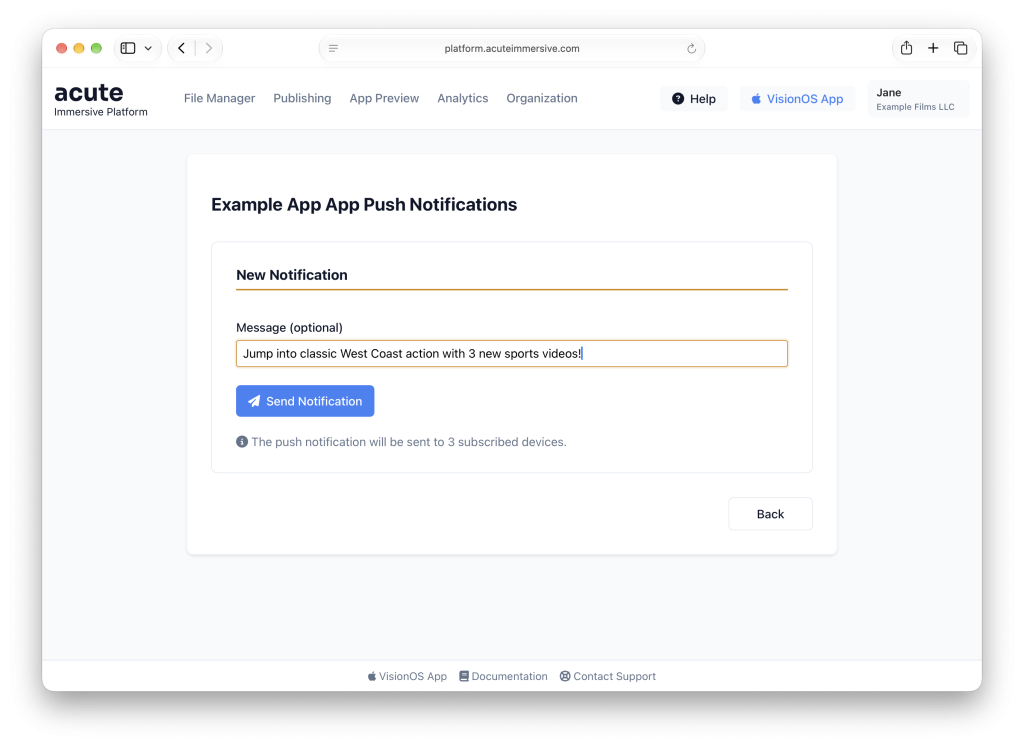
Go to the App Preview tab on the Acute Immersive Platform and click the Push Notifications (bell) button.
Enter a short message and click Send Notification.
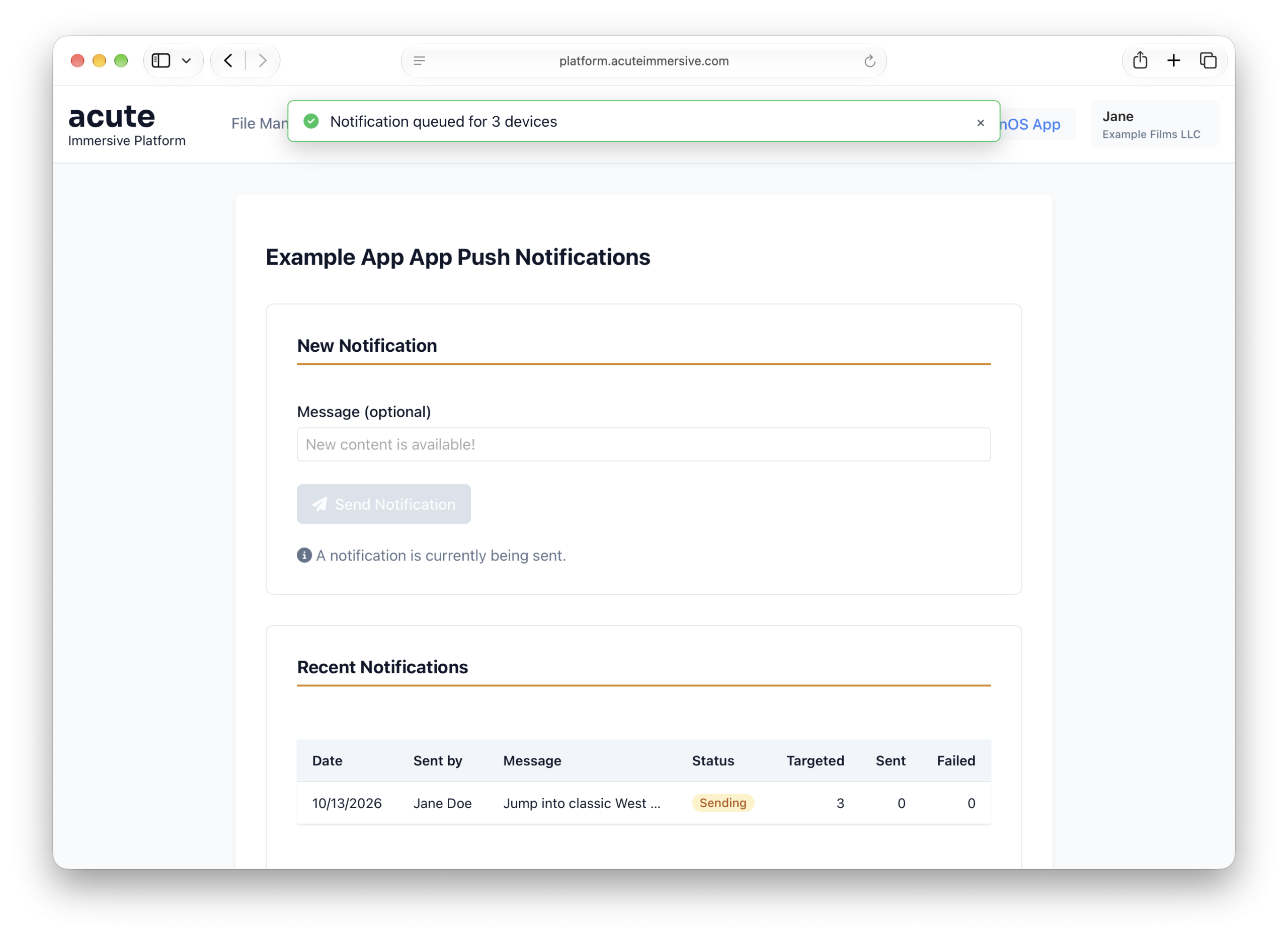
That’s it! Your notification is dispatched to users who have subscribed to notifications inside your app.
Grow
Monitor analytics
When you publish to own app, you gain access to detailed analytics to better understand your audience and how they interact with your content.
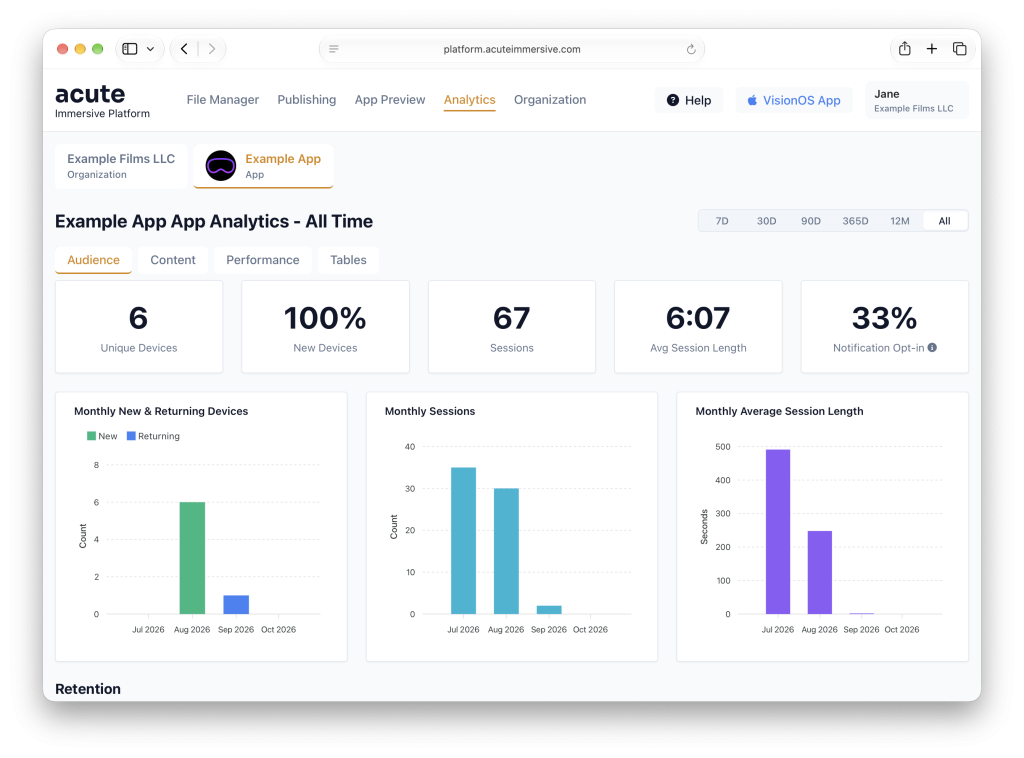
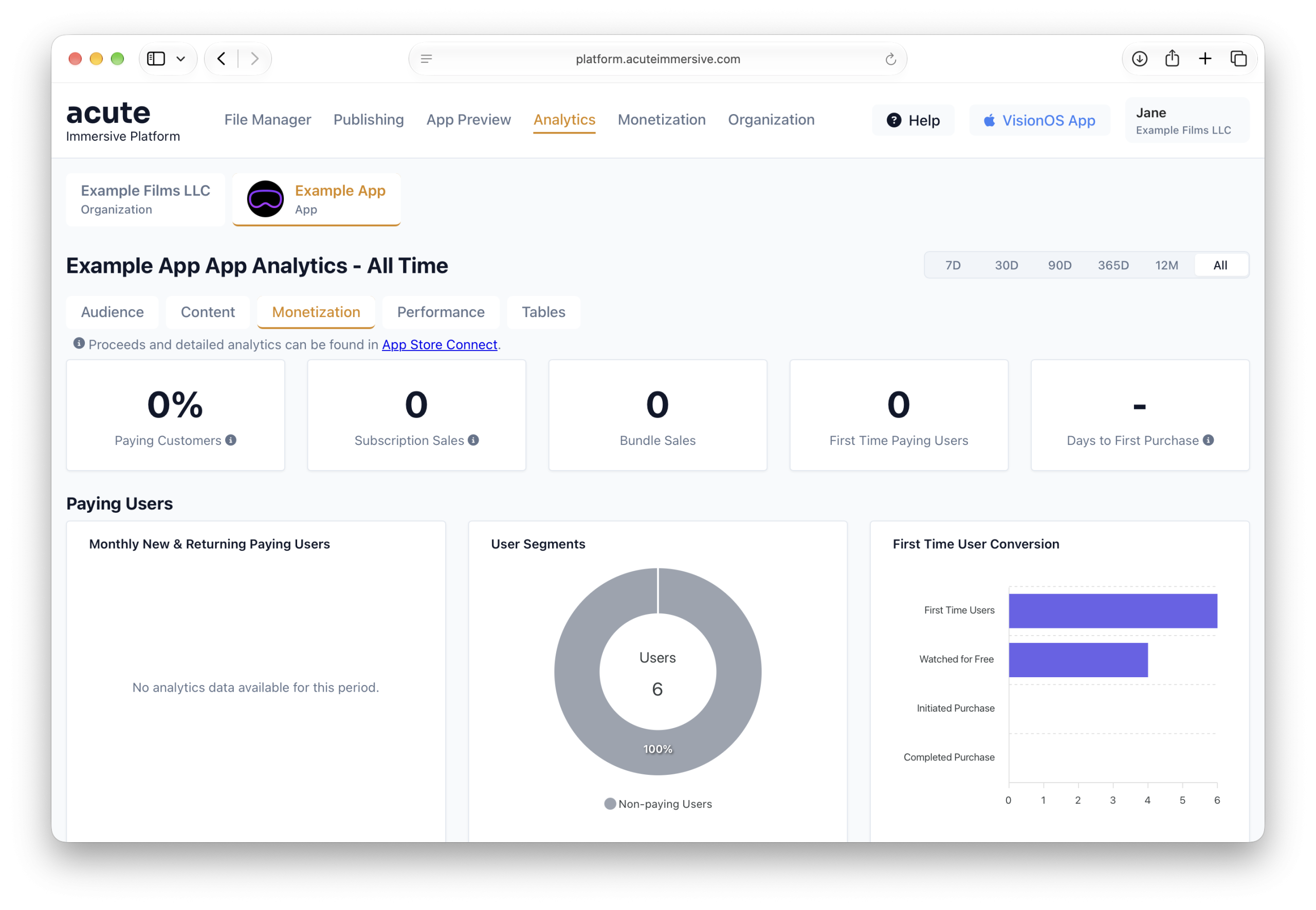
Go to the Analytics tab on the Acute Immersive Platform.
You’ll find two main tabs: one for your organization and one for your app. The tab for your organization includes statistics for videos that are not published in your app, for instance private videos shared with a private Share Link, or videos published in third party app such as the Acute Pro Showcase tab.
The tab for your app has four sub-tabs:
Audience focuses on understanding app users, their retention, how they respond to popups asking them to subscribe to notifications, etc.
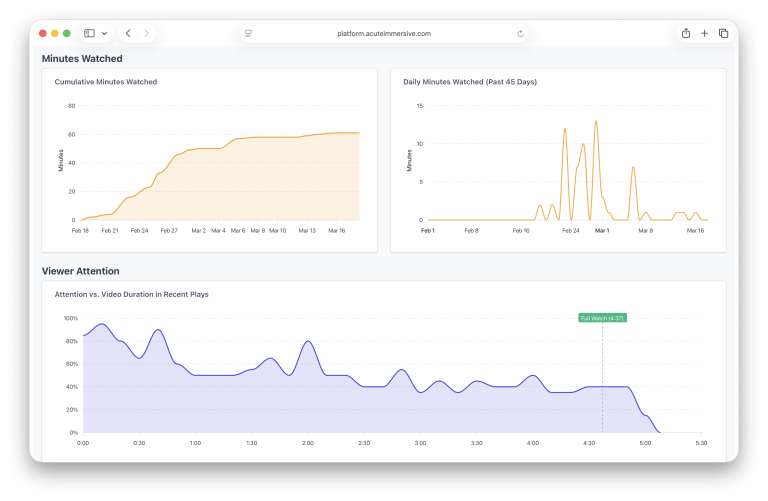
Content aggregates minutes watched and page views, highlighting where users spend their time
Performance reports streaming bitrates and error rates, giving you (and us) an idea of the frequency of playback issues
Tables reports numbers for all your videos, playlists, pages, and video files (for performance). All tables can be downloaded as CSV, and each row is clickable, taking you to a dedicated page for this particular piece of content.
Click one of your videos in the Tables sub-tab. This will take you to a page with detailed analytics and a viewer retention graph.
Grow
Monetize videos
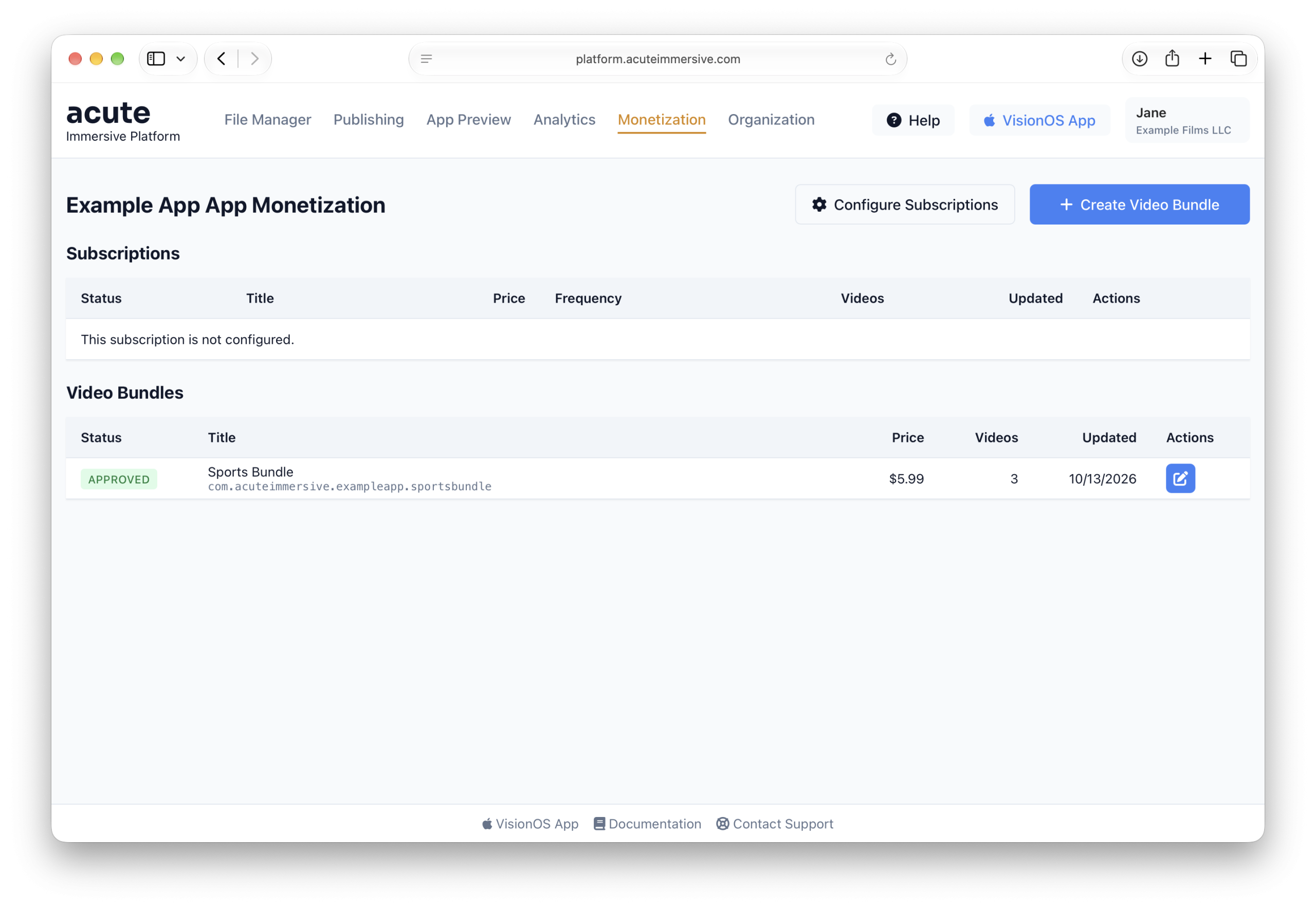
You can create In-App Purchases and Subscriptions, and manage what videos they unlock, all from the Acute Immersive Platform. You don’t need to juggle App Store Connect or third-party services.
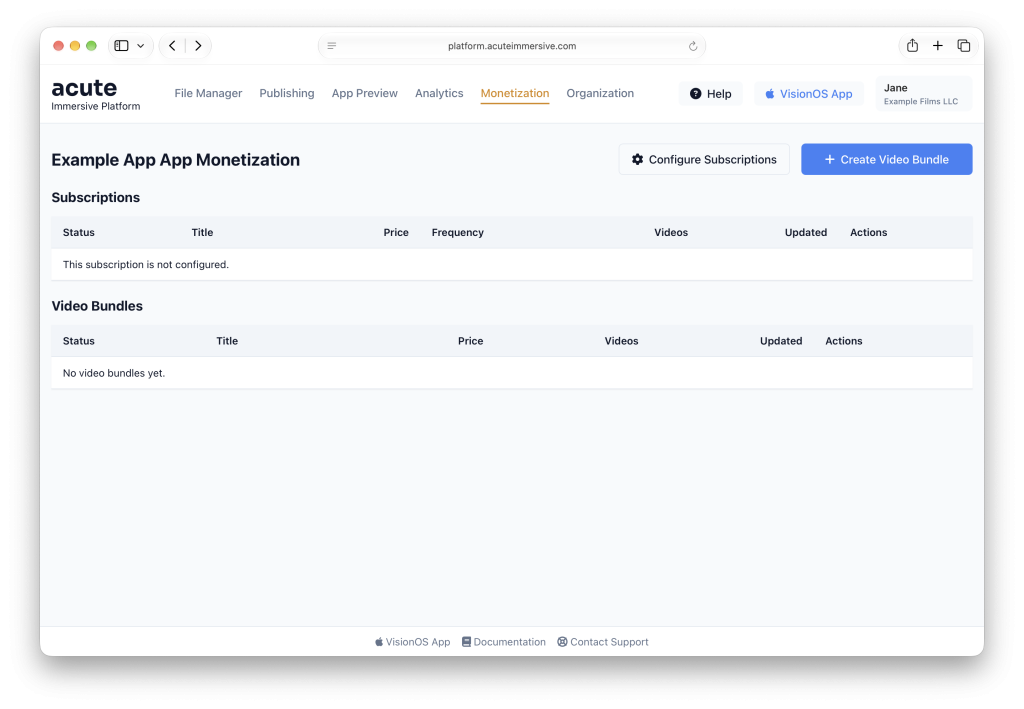
Go to the Monetization tab on the Acute Immersive Platform.
There are two ways to monetize your content:
Video Bundles are one-time purchases that give a user forever access to one or more videos.
Subscriptions are renewable purchases that give give a user access to one or more videos as long as the subscription is active and current.
All in-app purchases are done through Apple’s App Store system. They levy 15-30% of proceeds to support 175 markets with their various currencies, tax rules, and payment systems.
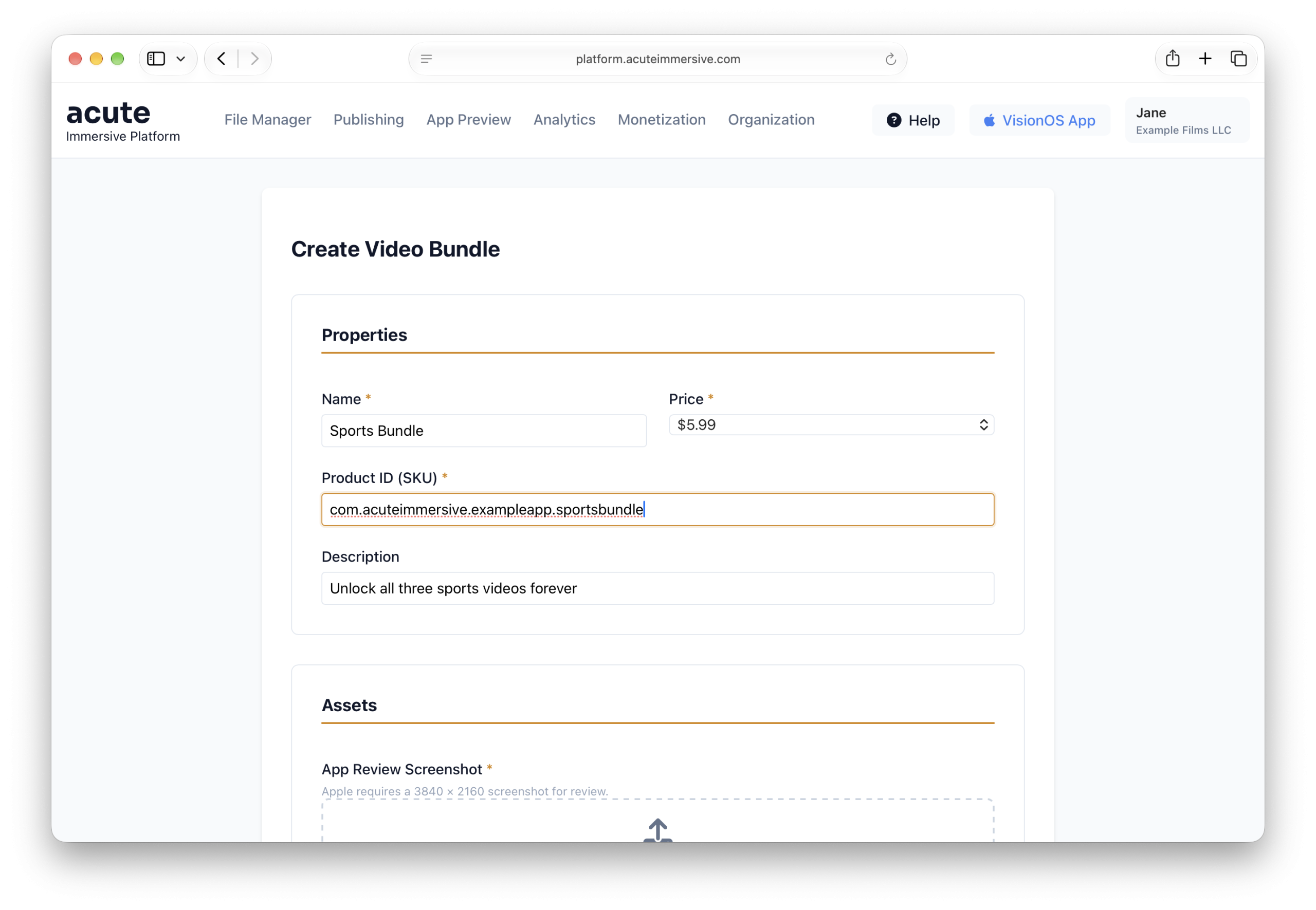
Click Create Video Bundle and fill in the information including the price, then click Create Bundle. You can leave the Screenshot field empty for now.
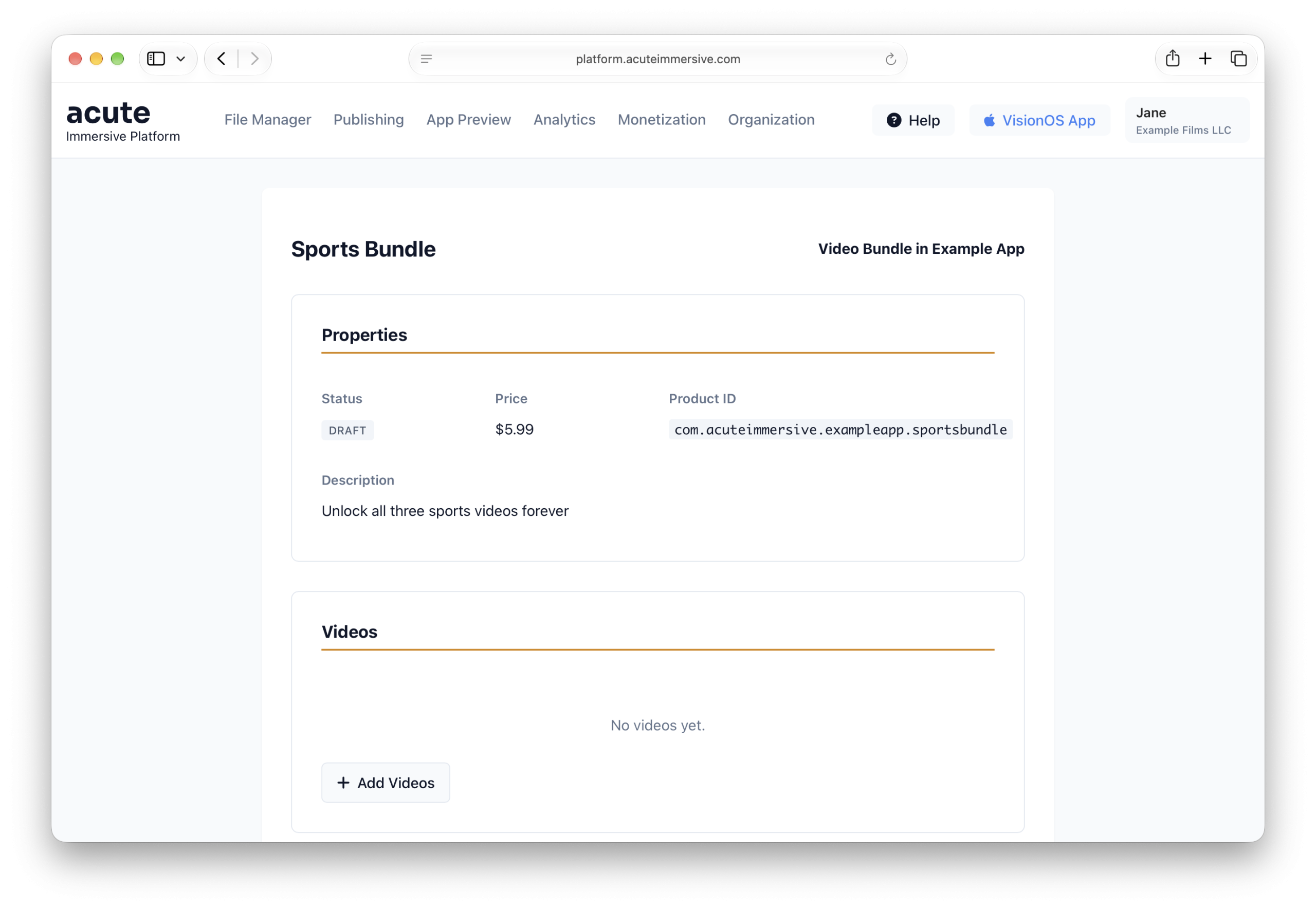
Now click Add Videos.
Select a video to put behind the bundle’s paywall, and repeat the operation if you want to paywall multiple videos.
This process is similar to setting up playlists.
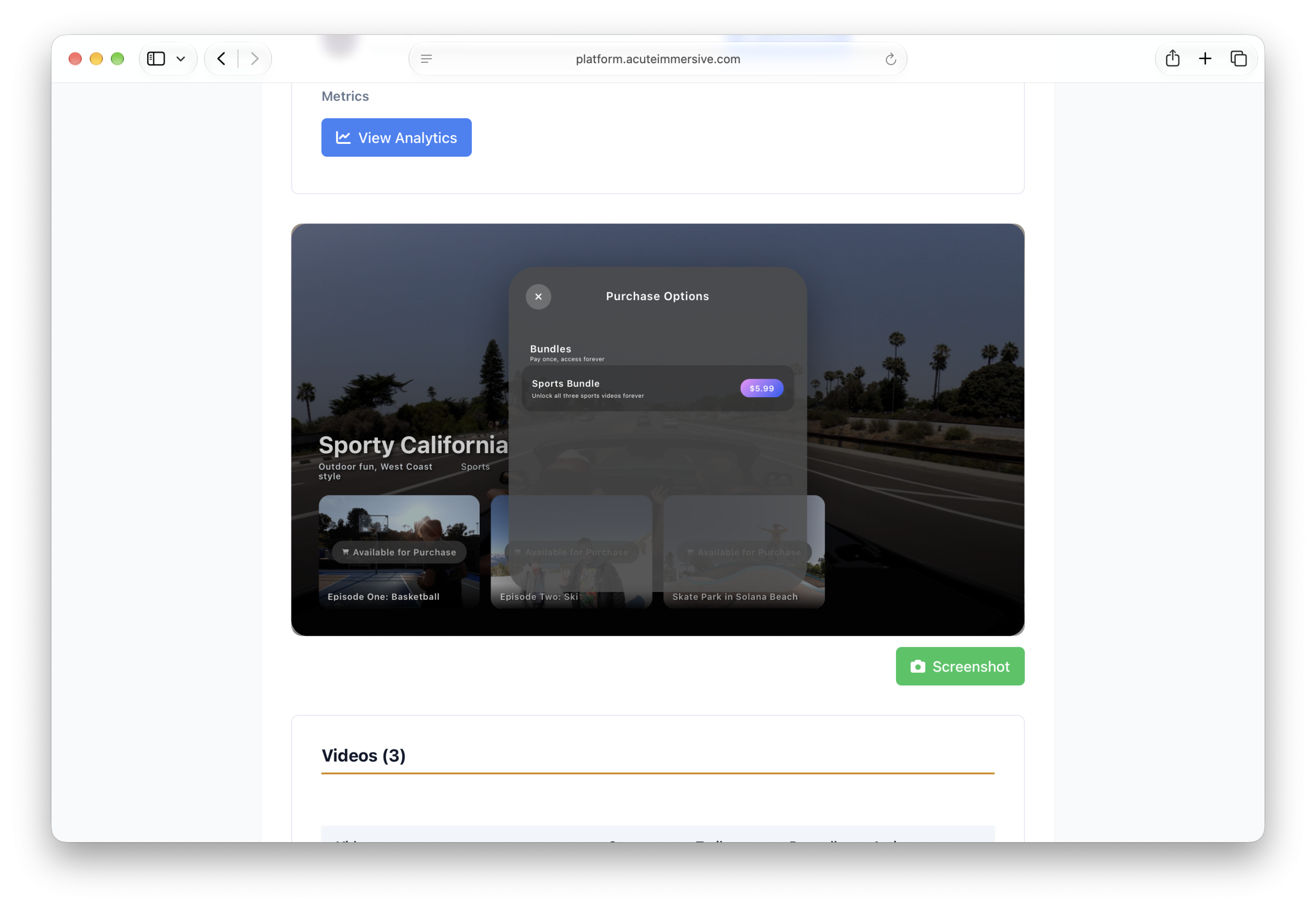
Go to the details page for the video or the playlist, and find the simulator preview. Click “Available for Purchase” to reveal the bundle popup and click the Screenshot button.
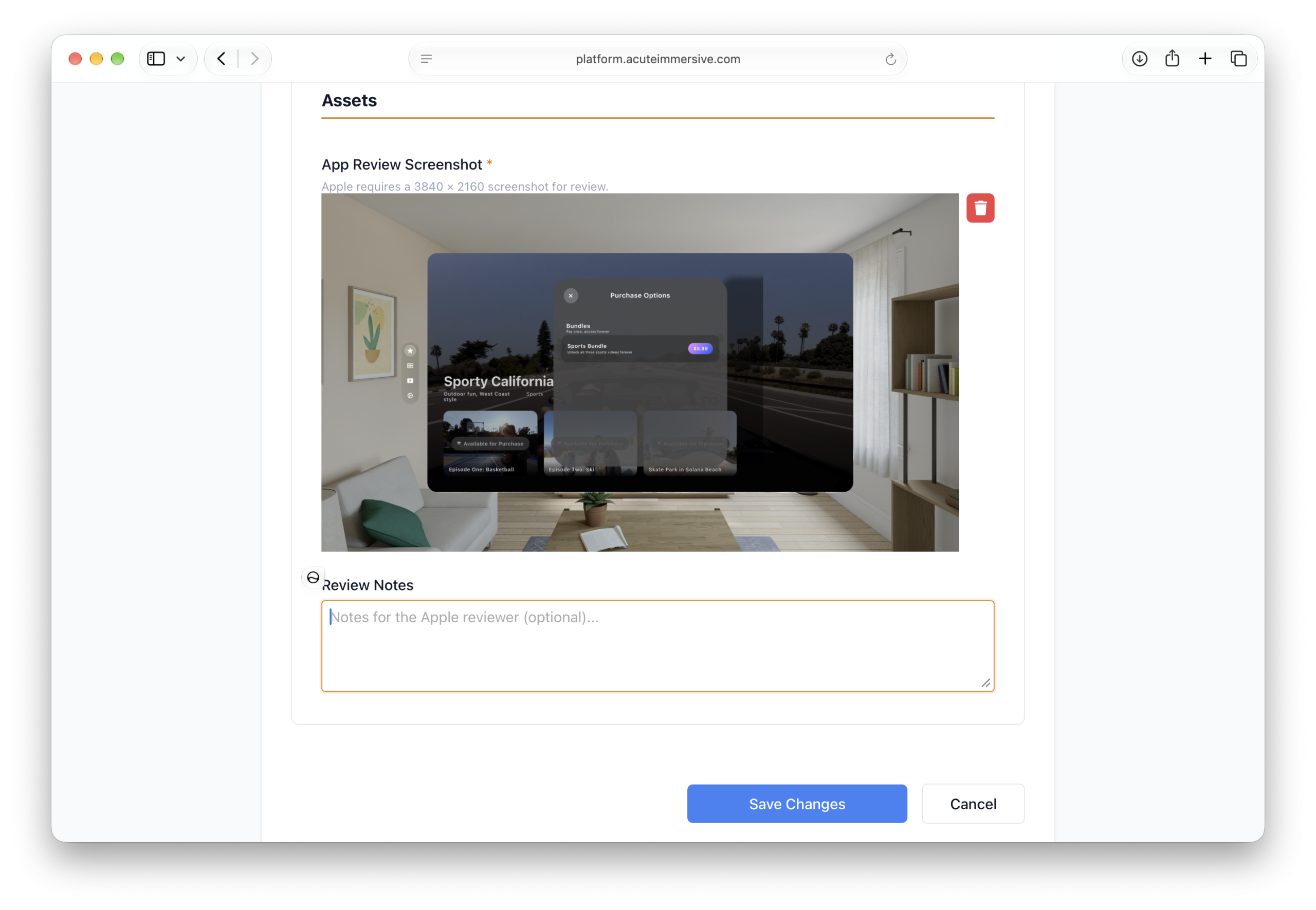
Now go back to the Monetization tab and edit the bundle to upload the simulator screenshot you just downloaded, then click Save Changes.
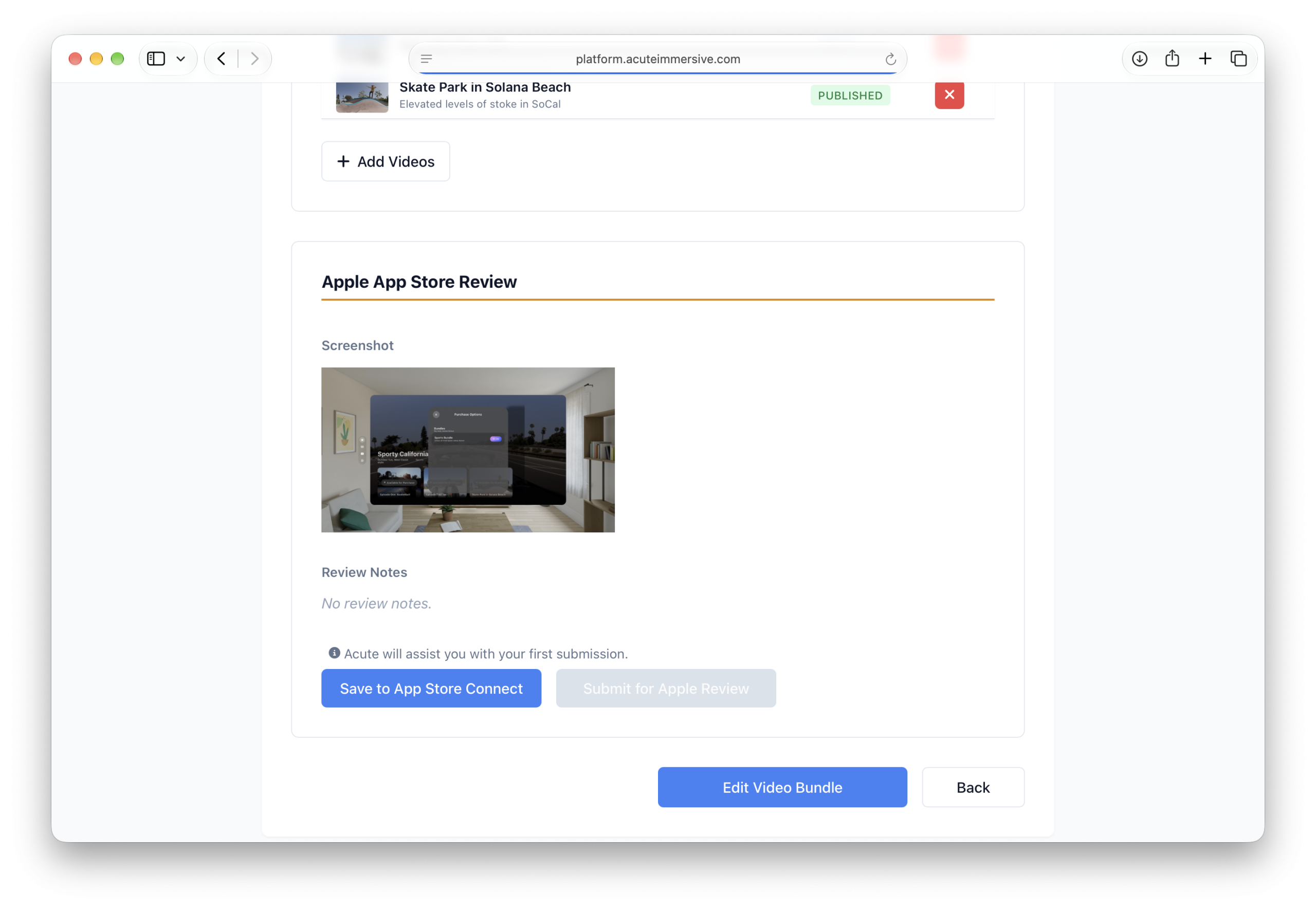
This screenshot is mandatory for App Store review, it is meant to show Apple where in the app they need to go to find the in-app purchase.
Now click “Submit for Apple Review”. Caution: this will make the paywall effective in your live app, and users will lose access to the videos that are in the bundle.
Apple will review your in-app purchase in typically 24-48 hours. You’ll receive emails from Apple as the approval status changes. Once approved, you can always add and remove videos to your bundle, and adjust its price.
Paywalled videos are flagged as such in the Publishing and App Preview tabs.
The Analytics tab has a Monetization sub-tab to track purchases and sales over time. This tab doesn’t show proceeds in dollars, you will find this information in App Store Connect.
QUESTIONS
Talk directly to the Acute team.
If the platform behaves differently from this guide, or you need help with a format, upload or active deployment, contact us.